Blog / MyLead Guide
What Are MyLead Smartlinks and How Do You Set Them Up?
This article is updated regularly
Last update:
10 December 2025
MyLead Smartlinks are intelligent affiliate links that automatically route each visitor to the best-converting offer based on their country, device, and other signals. On the Smartlinks page you can build a Smartlink with a built-in A/B test, pick ready-to-use Smartlinks, create your own from scratch, or run a standalone A/B test between two offers.
This guide walks you through all four Smartlink tools in MyLead, from configuration to the final tracking URL. You'll see which option fits your traffic and how to launch it.
What you'll learn from this article:
the four options on the MyLead Smartlinks page and when to use each,
how to create a Smartlink with a built-in A/B test,
how to join ready-made Smartlinks or build your own per country,
how to run an A/B test and get its tracking URL.
What are MyLead Smartlinks?
MyLead Smartlinks are single affiliate links that hold many offers and automatically show each user the campaign most likely to convert. The system analyzes geo, device, browser, and traffic signals, then redirects every click to the matching offer. You promote one URL instead of managing dozens of separate campaign links.
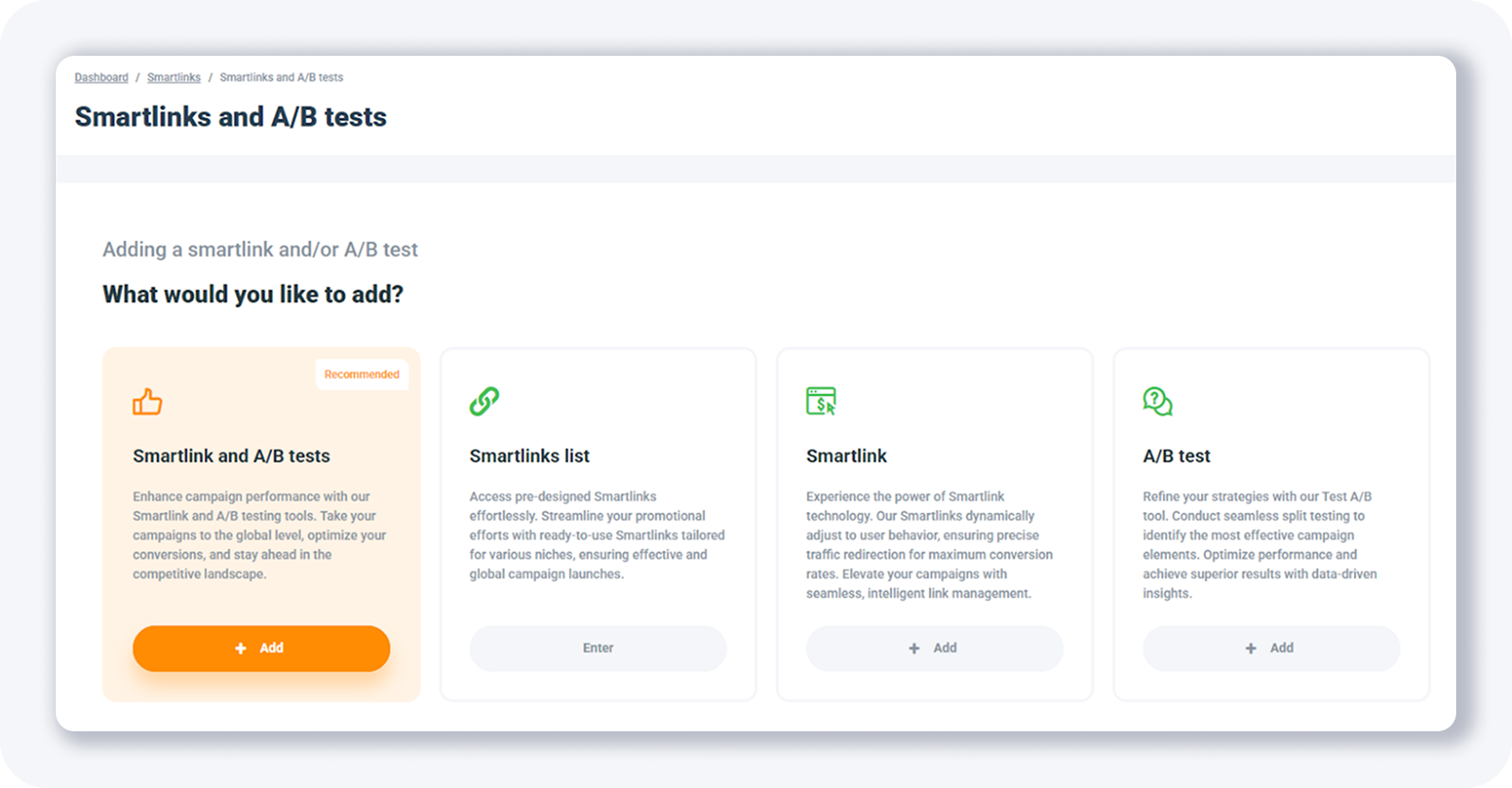
Each of the four tools suits a different need; if the format is new to you, start with what a Smartlink is.
How do you create a Smartlink with an A/B test?
The Smartlink and A/B tests option is the most advanced tool on the page: it combines a multi-offer Smartlink and a split test in one configuration. It sends traffic by country across several offers with defined traffic shares, supports fallback campaigns, and assigns a single tracking domain. This is the recommended setup for most publishers.
The form follows a clear sequence, shown step by step below.
Click + Add under Smartlink and A/B tests.
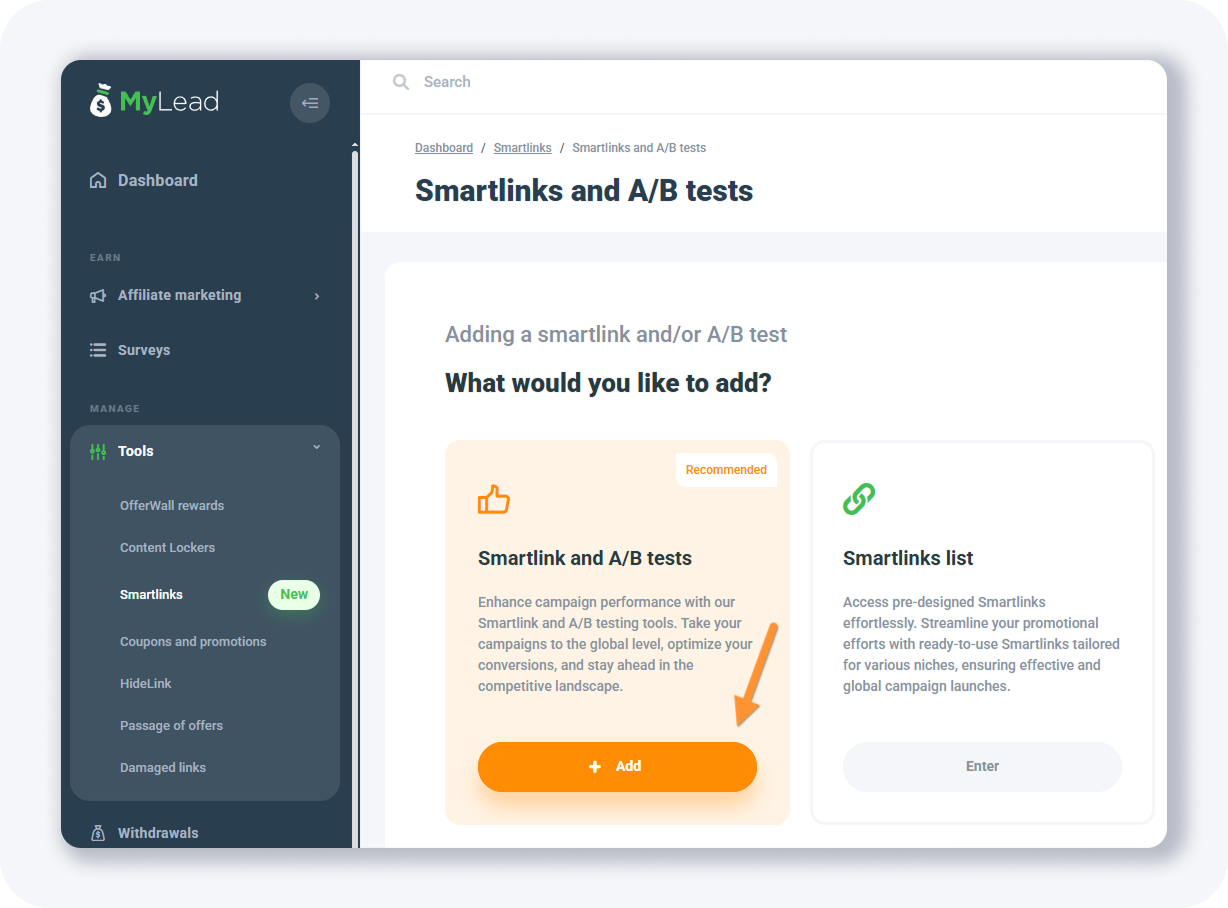
Name the configuration.
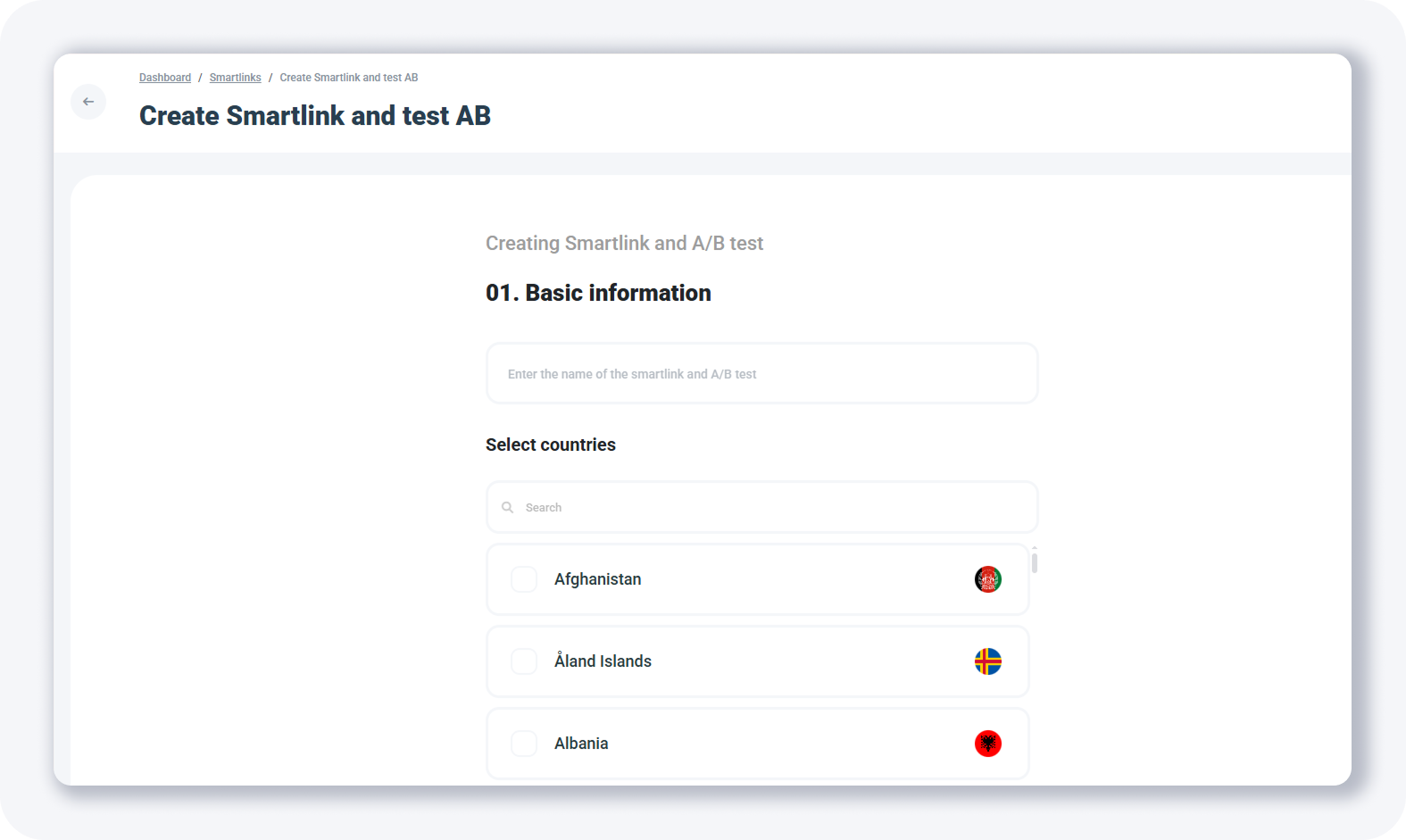
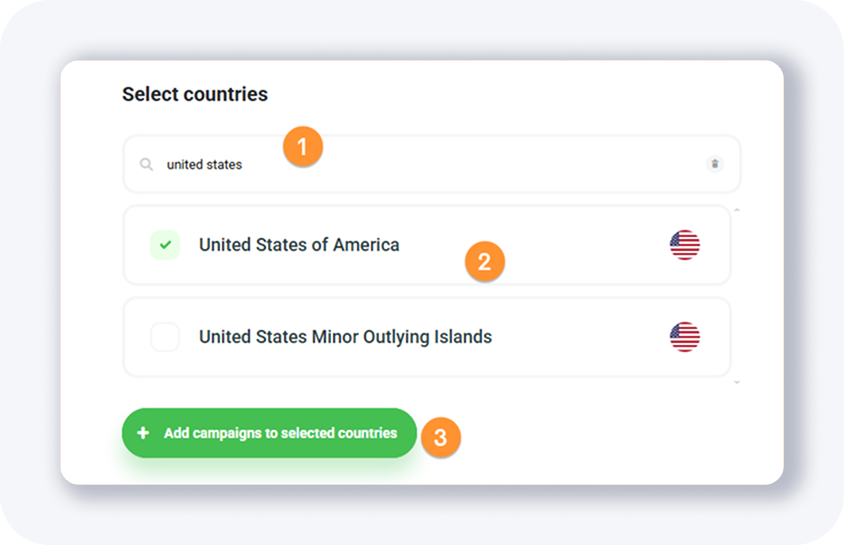
Search for and select the countries you want traffic from.
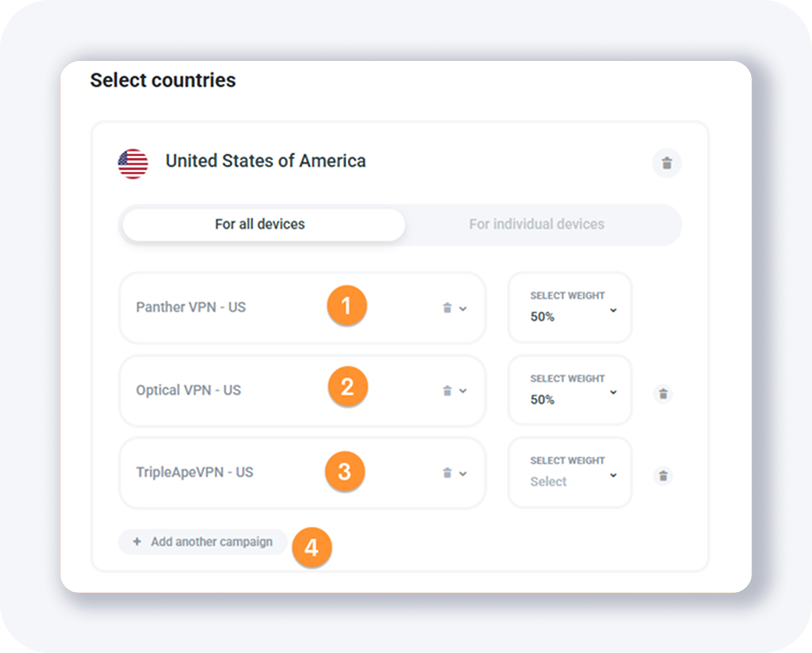
Add several offers to the flow and set each offer's share of traffic.
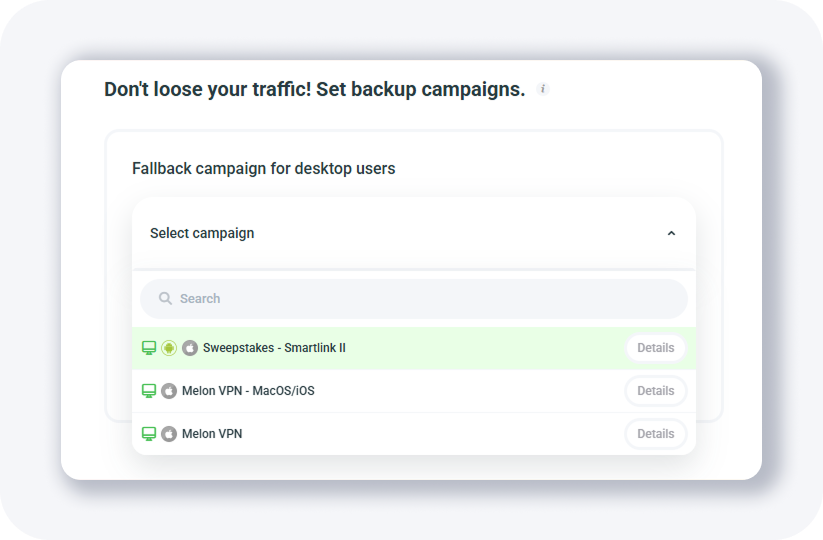
Add fallback (backup) campaigns for traffic that doesn't match the offers above.
Select the tracking domain and leave the tracking parameters empty for now.
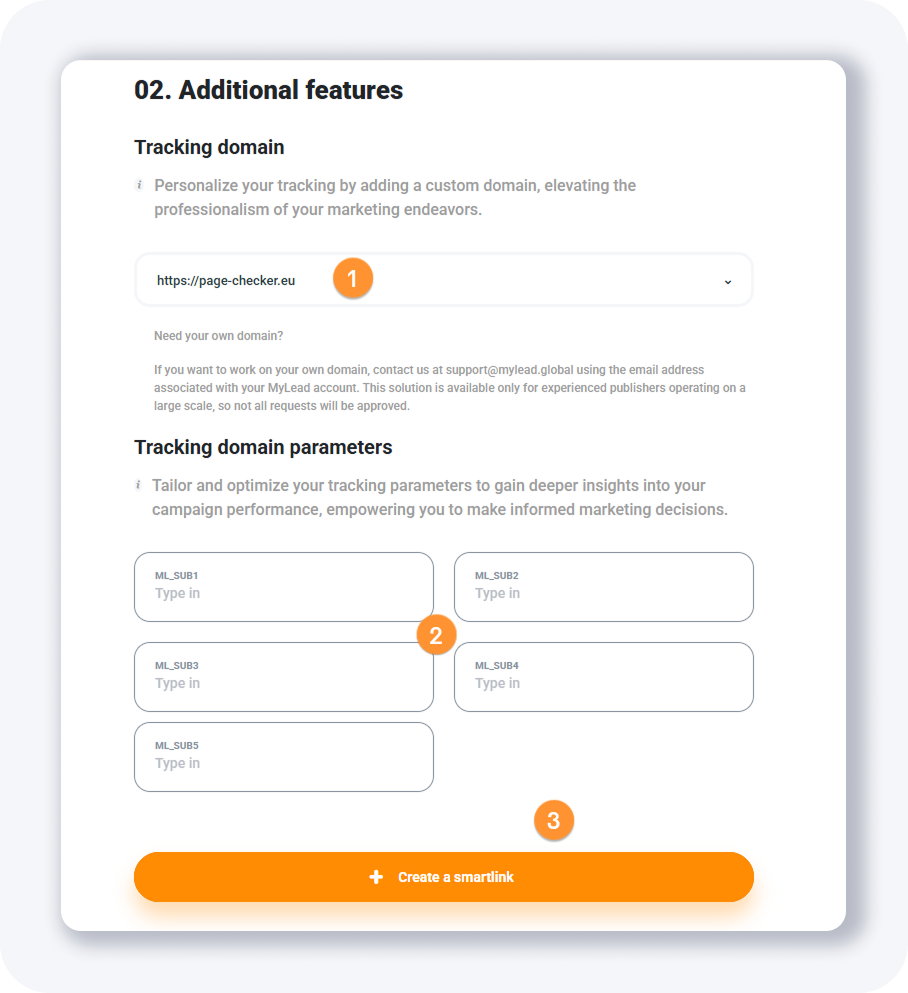
Click the orange button — your Smartlink is ready. The same engine powers Smartlinks and A/B testing in MyLead.
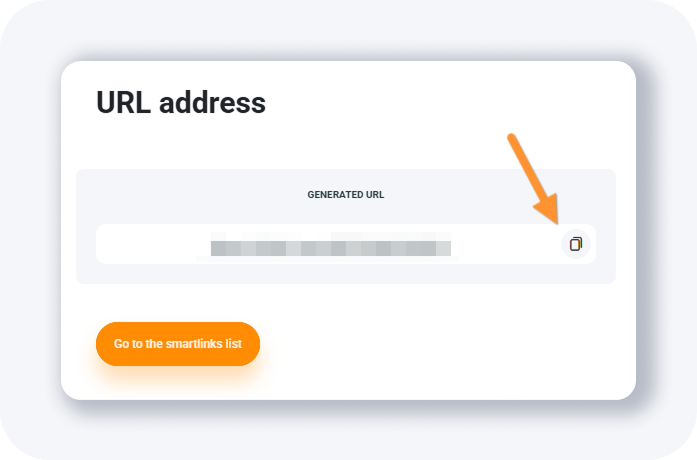
Where do you find ready-to-use Smartlinks?
The Smartlinks list is a catalog of ready-made Smartlinks that MyLead has already built and optimized for specific niches, such as CPI offers. Each entry is a complete Smartlink you can promote with no configuration of your own — you join the campaign and use its URL. It suits publishers who want to launch fast.
Open the Smartlinks list and filter by niche, for example CPI.
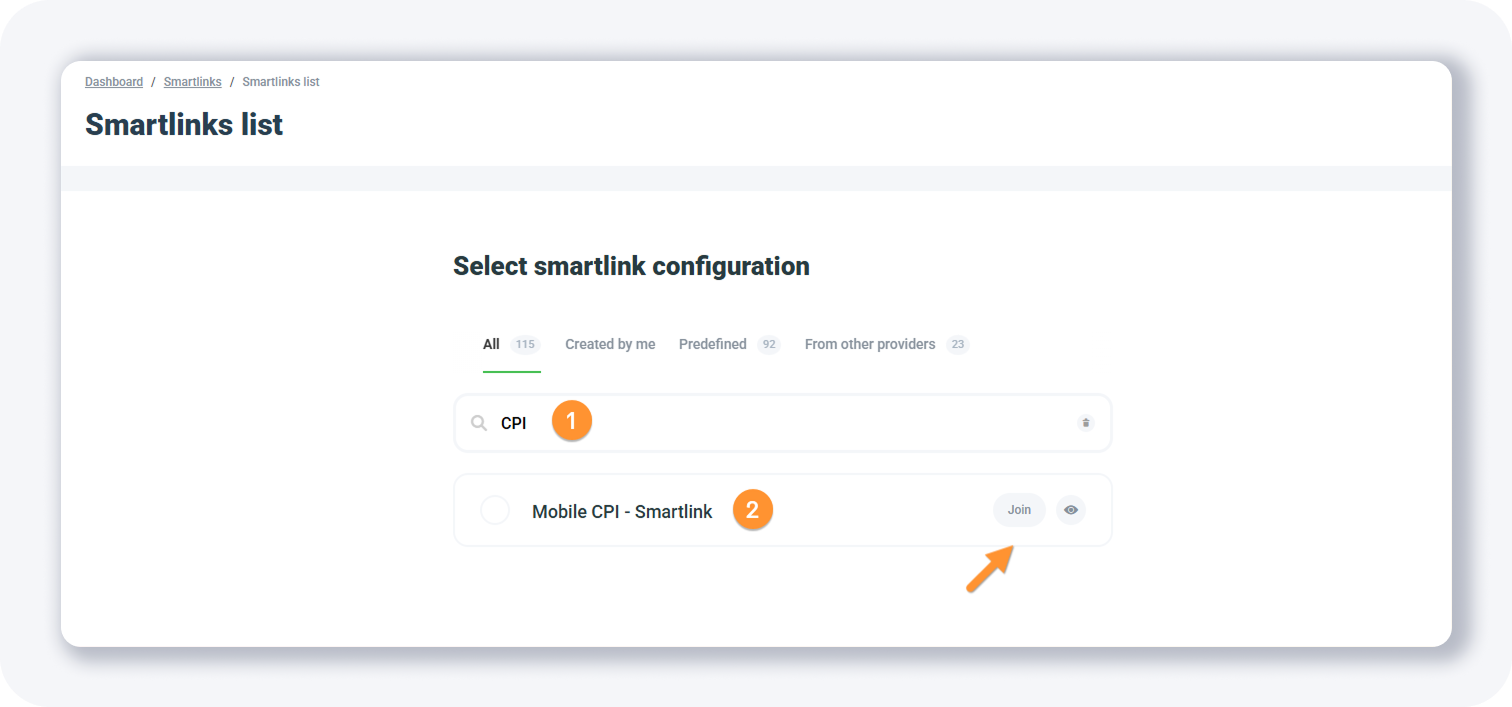
Open a Smartlink, such as a CPI offer, to see its details.
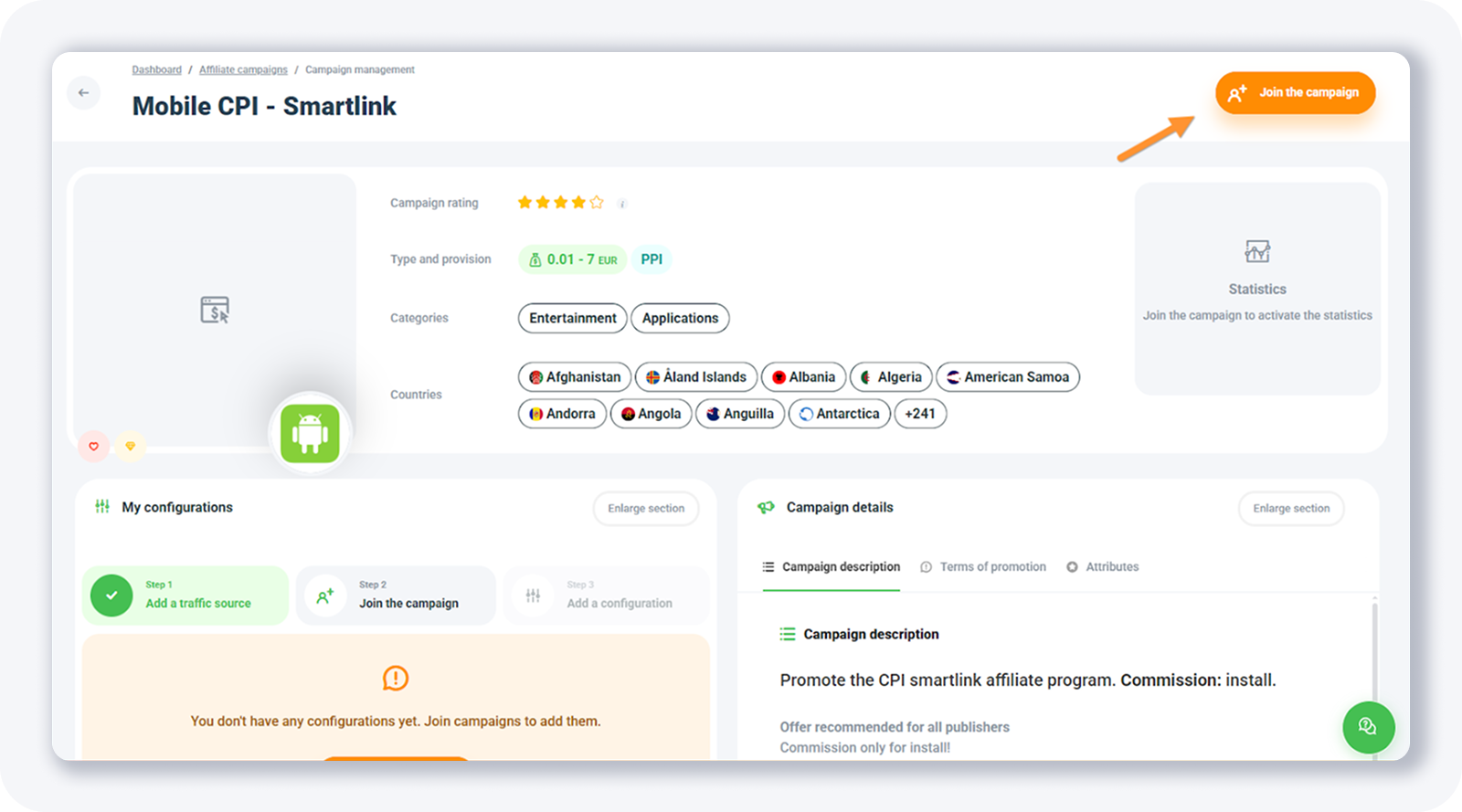
Click Join the campaign; your request is approved shortly after.
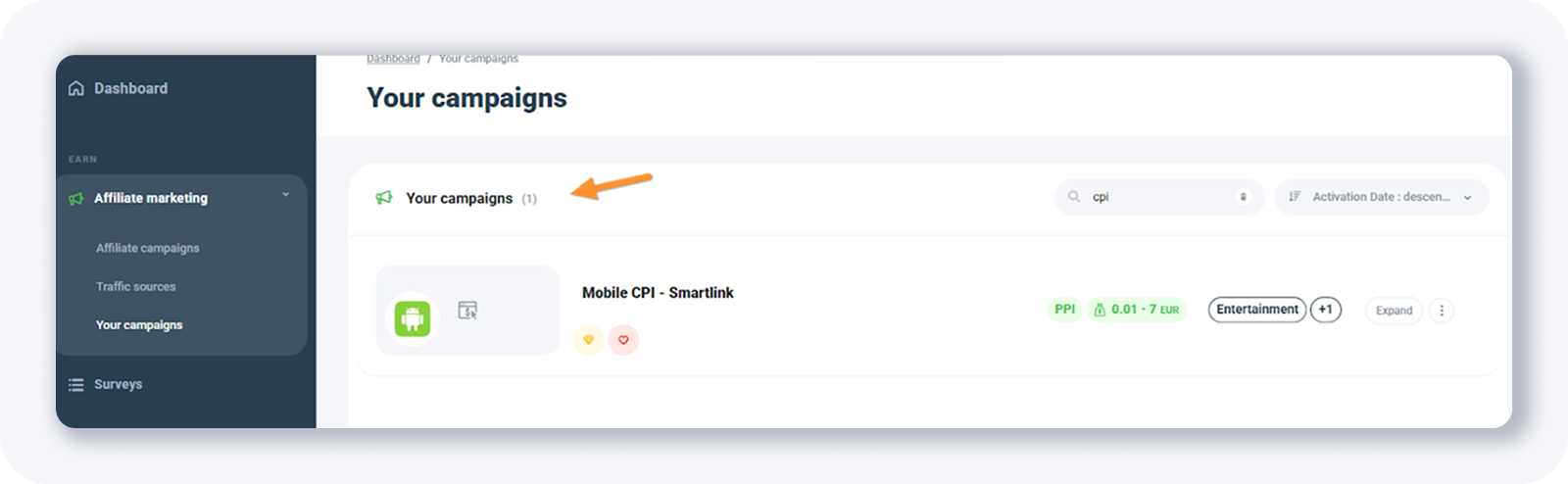
Open the details page to find the Smartlink URL you promote.
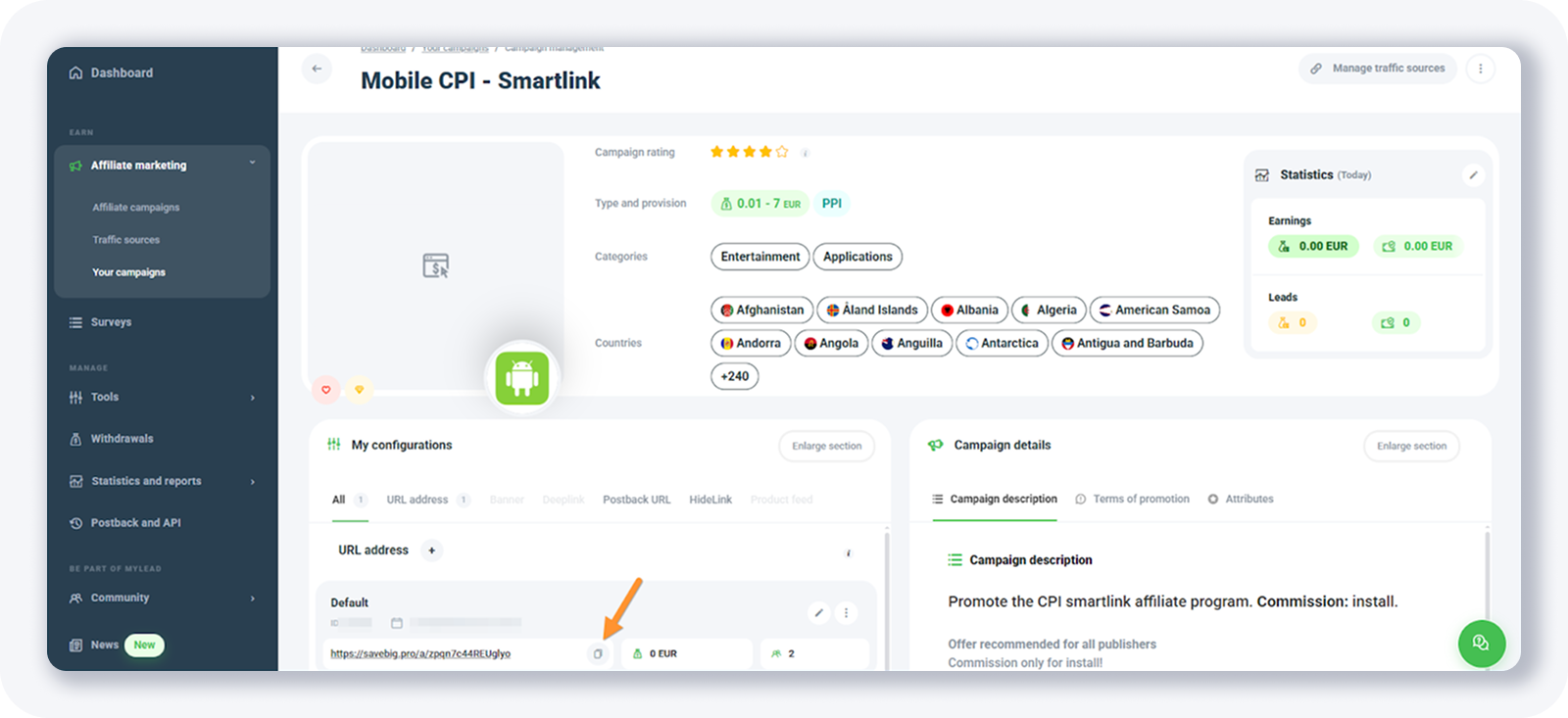
To plug these links into your own measurement setup, see how to add MyLead Smartlinks to a tracker.
How do you build your own Smartlink from scratch?
The Smartlink tool lets you build a custom Smartlink from scratch, mapping your own campaigns to each country you target. It supports multiple countries, per-country campaign assignment, and fallback offers so no traffic is wasted. Unlike the ready-made list, it gives full control over which offers run where.
Open the Smartlink tool to start a custom configuration.
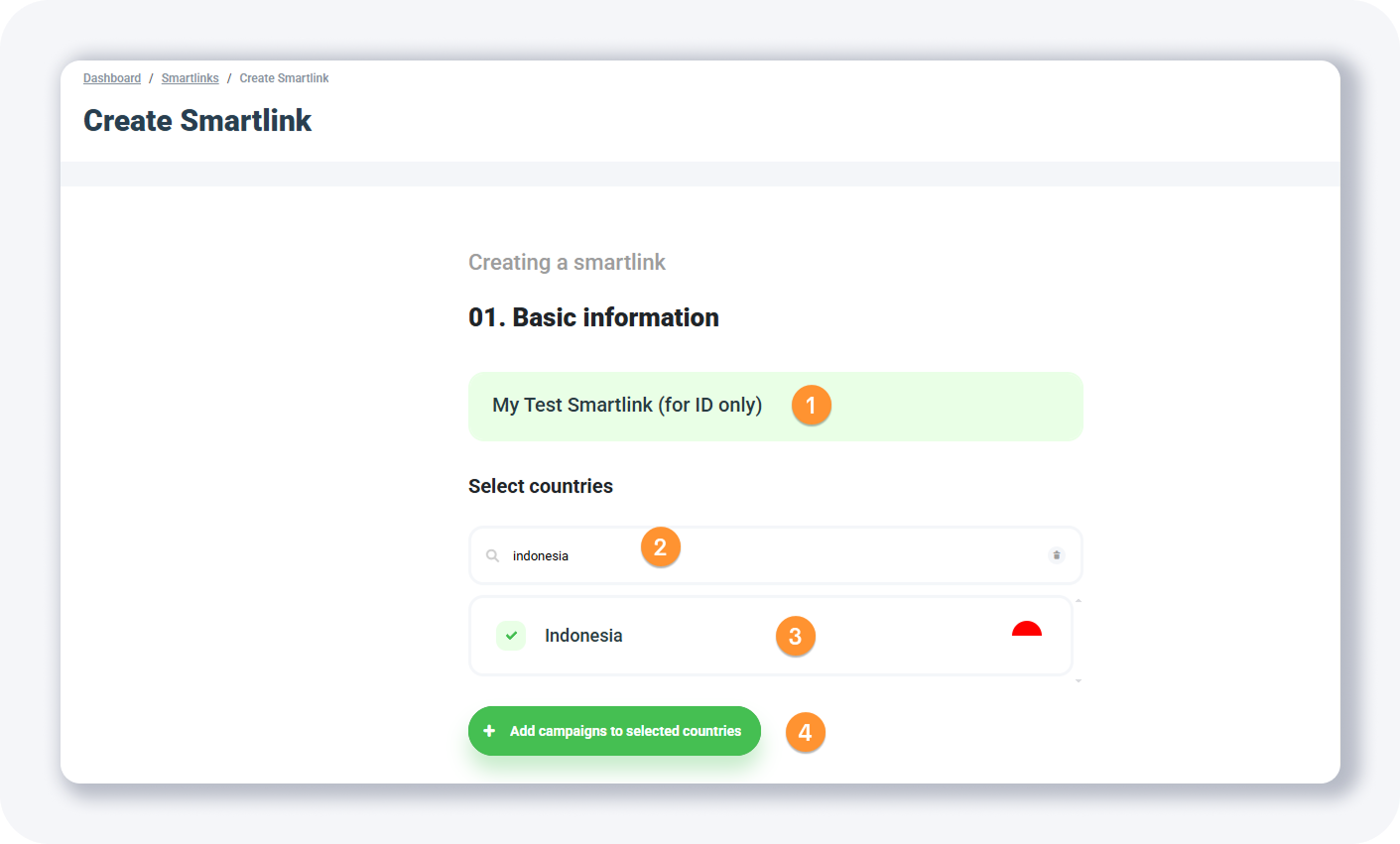
Then complete the form:
Enter the smartlink name.
Search for the country (or several) where you want the smartlink to work.
Pick the country (or more) from the results.
Click + Add campaigns to selected countries.
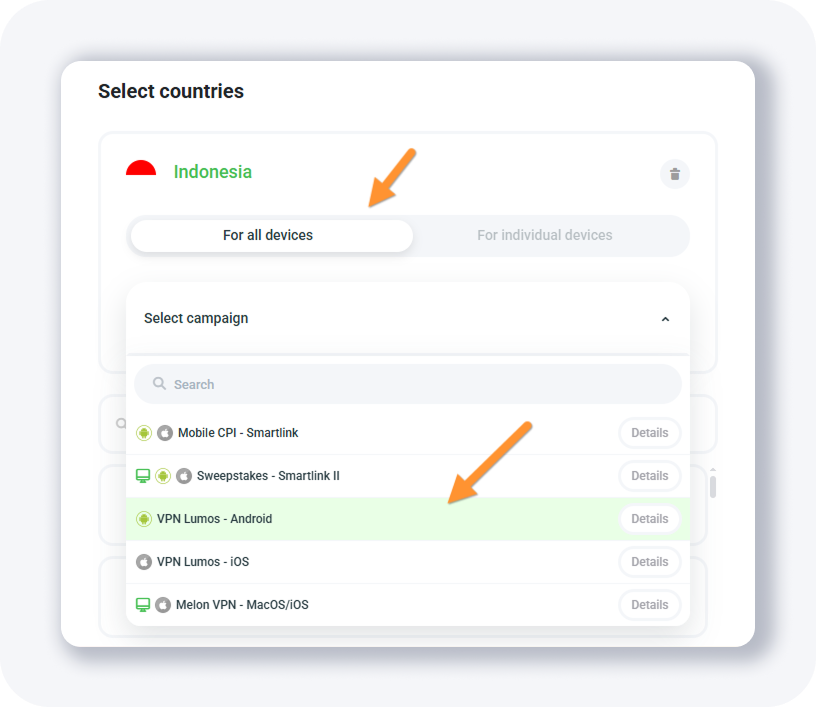
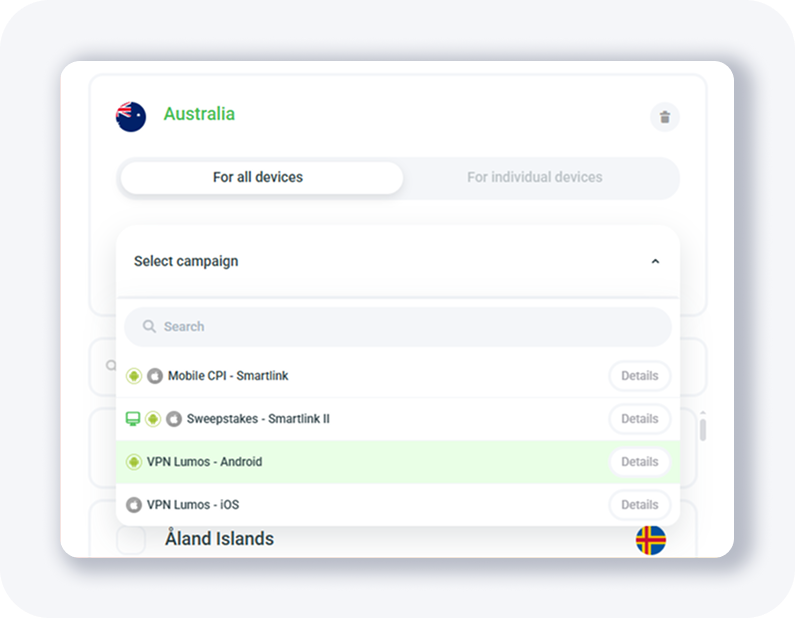
Select the campaign to add for the chosen country, then repeat for the others.
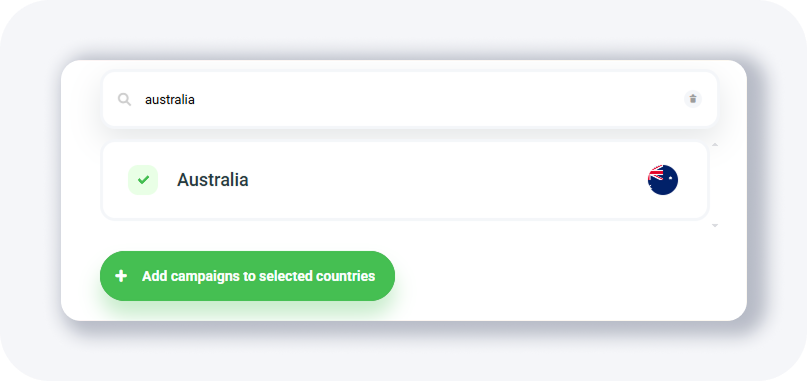
Your per-country setup looks like this.
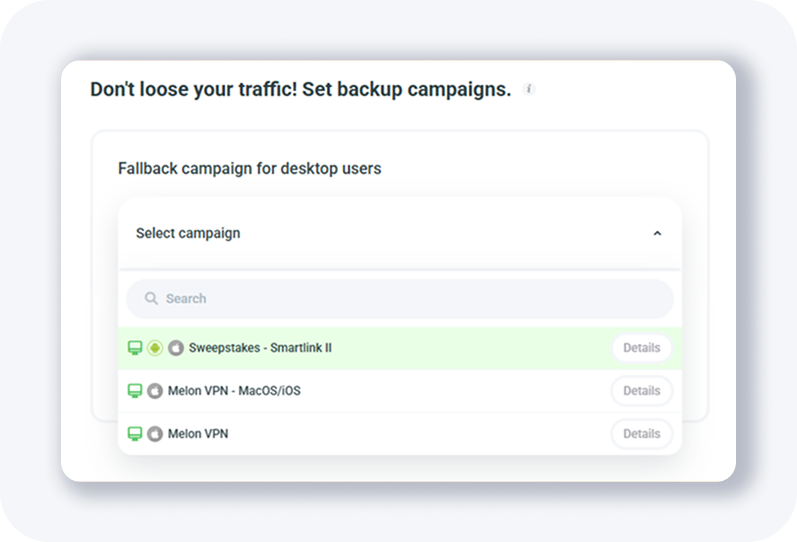
Scroll down and pick fallback campaigns so you don't lose traffic.
Select the tracking domain; leave the tracking parameters empty for now.
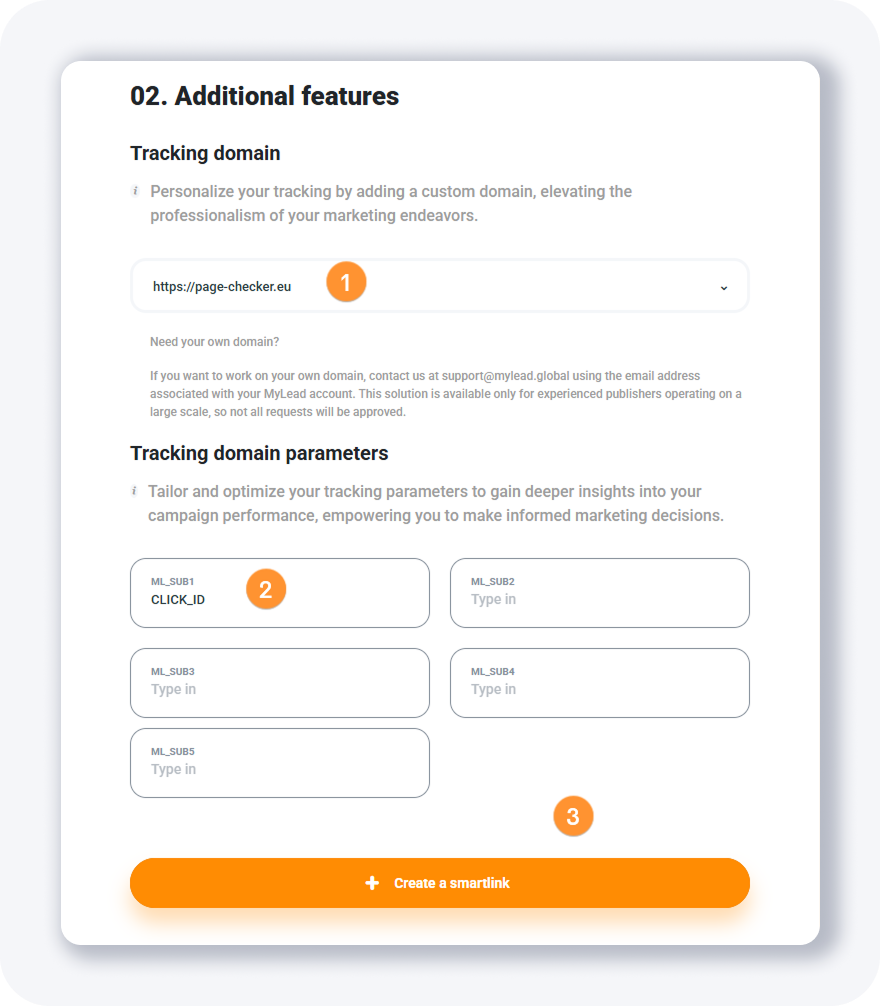
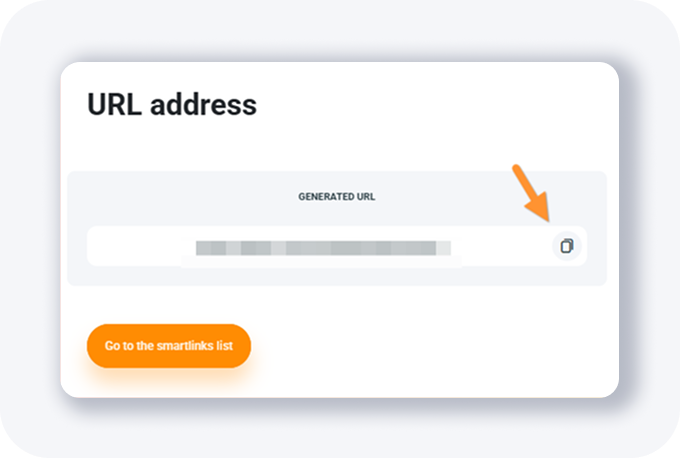
Click + Create a smartlink — it's ready immediately.
A custom Smartlink pairs well with split testing; see A/B testing and Smartlinks for higher conversions.
How do you run an A/B test?
The A/B test tool runs a split test between two offers or Smartlinks so you can compare their performance on the same traffic. It distributes visitors across the two variants, supports separate fallback campaigns for desktop and mobile, and assigns a tracking domain plus your tracker's tokens. The output is a single tracking URL you send traffic to.
Open the A/B test tool.
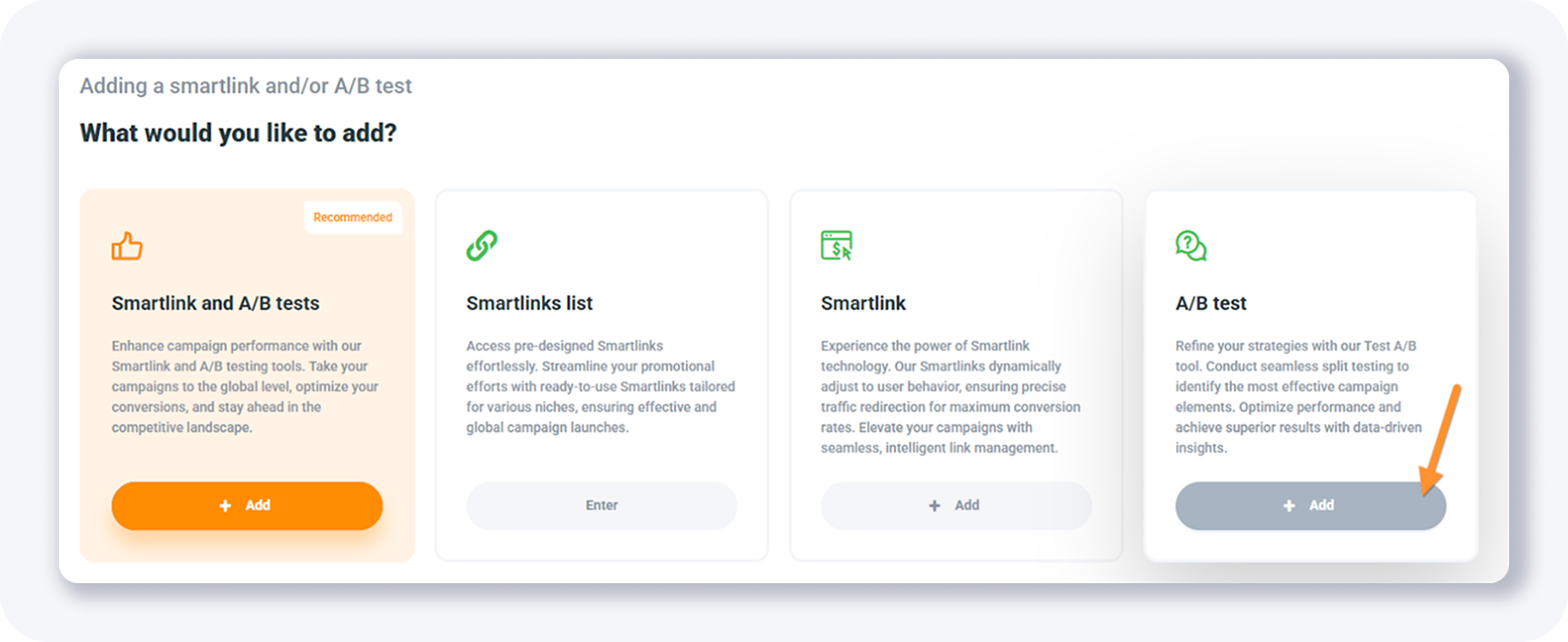
Click + Add to open the form.

The tool splits traffic between two offers or Smartlinks.
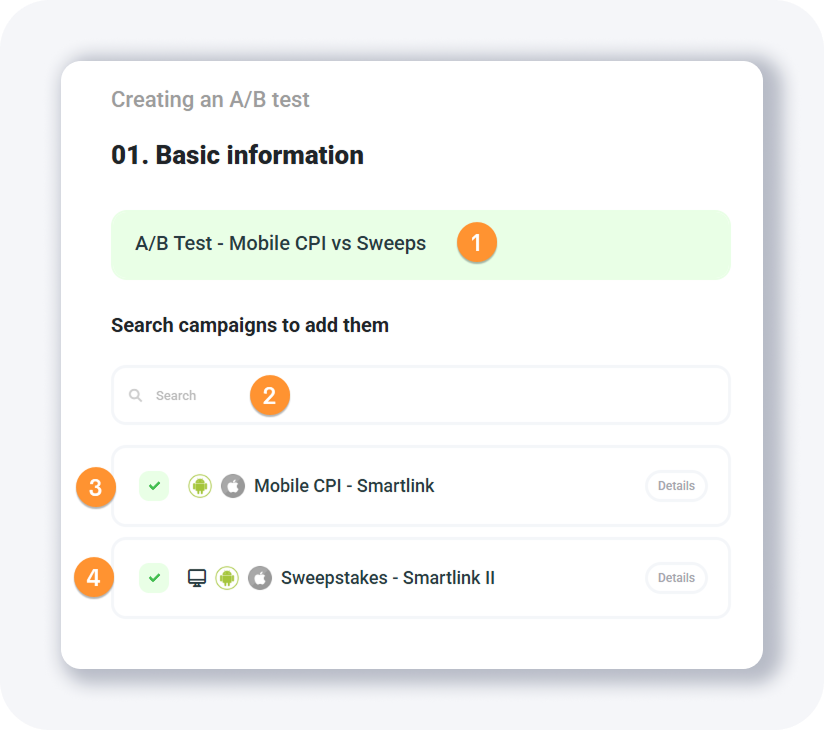
Name the test, search for the campaigns or Smartlinks to test, then scroll down.
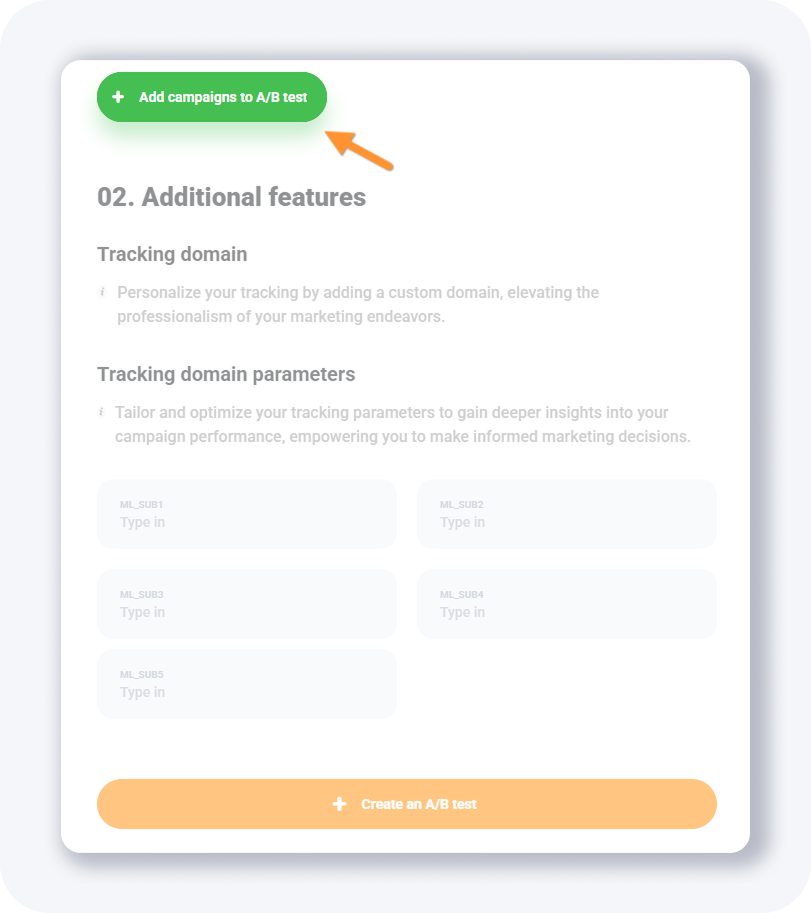
Click the green button to unlock the additional A/B test options.
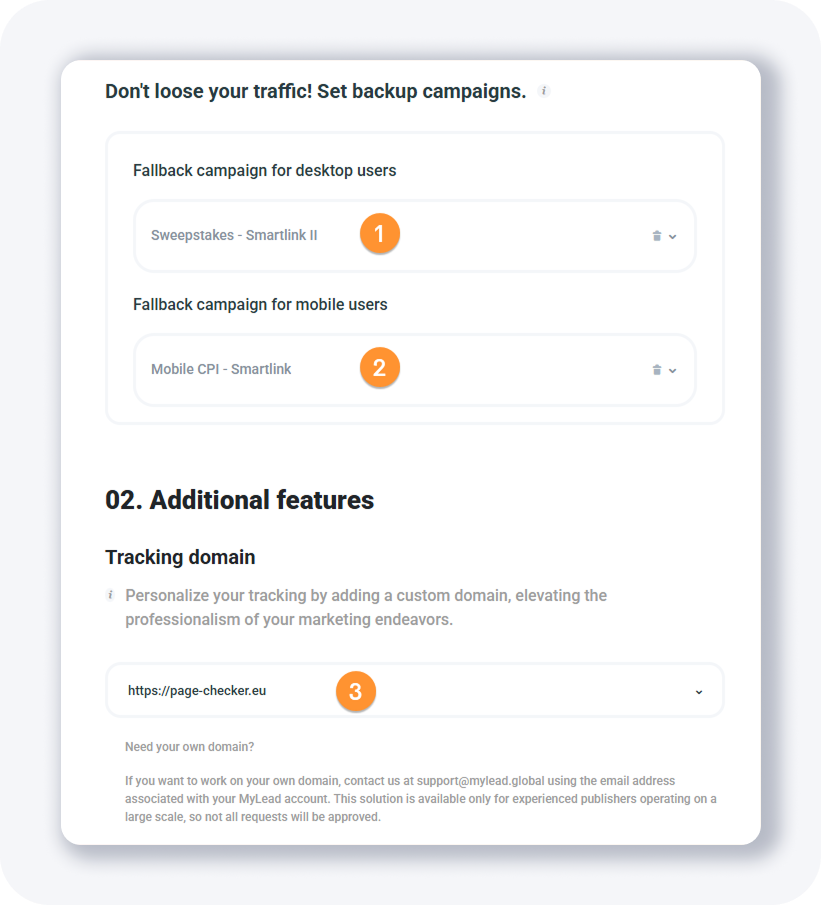
Set fallback campaigns for desktop and mobile, choose the tracking domain, and add your tracker's tokens in the last part of the form.
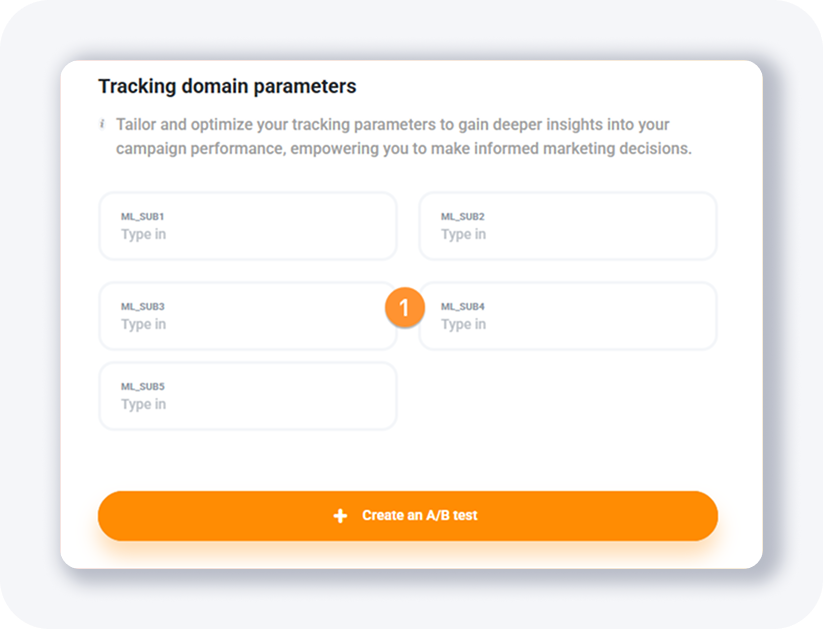
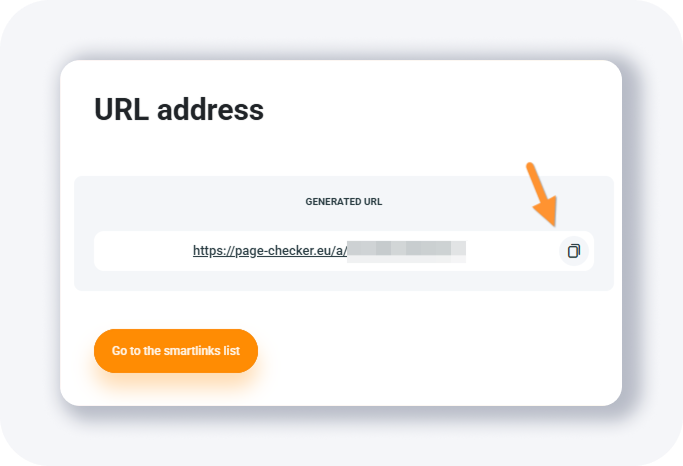
Click + Create an A/B test to get the tracking URL immediately.
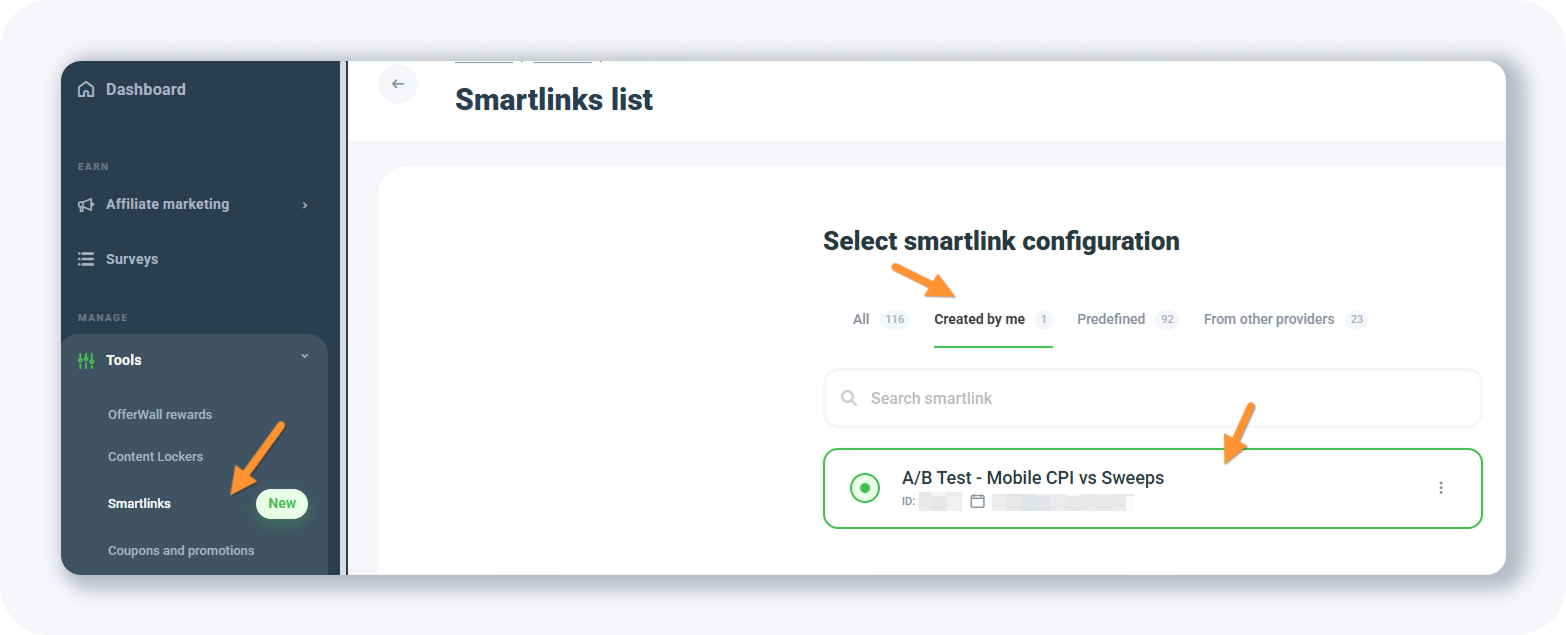
Find your A/B test in the list and start sending traffic.
For the theory behind split testing, read what A/B testing is and how to run it.
TIP: to work with your own tracking domain, contact support@mylead.global from the email address linked to your MyLead account.
Key takeaways
MyLead Smartlinks route every click to the best-matching offer by geo, device, and traffic signals, so you promote one URL instead of many.
The Smartlink and A/B tests option combines a multi-offer Smartlink with a split test in one form — the recommended setup for most publishers.
Ready-to-use Smartlinks in the Smartlinks list let you launch in minutes: join the campaign and copy its URL, with no setup of your own.
The Smartlink tool gives full control — you map your own campaigns to each country and add fallback offers so no traffic is wasted.
A/B tests compare two offers or Smartlinks on the same traffic and return one tracking URL, with separate fallbacks for desktop and mobile.
FAQ
1. Are MyLead Smartlinks free to use?
Yes. Smartlinks, the Smartlinks list, and A/B tests are free for every MyLead publisher; you only earn commissions from the conversions your traffic generates.
2. What's the difference between a Smartlink and an A/B test?
A Smartlink routes each visitor to the best-matching offer automatically, while an A/B test splits the same traffic between two chosen offers or Smartlinks to see which performs better.
3. Do I need my own campaigns to use the Smartlinks list?
No. The Smartlinks list contains ready-made campaigns built by MyLead; you join one and use its URL without configuring any offers yourself.
4. What are fallback campaigns in a Smartlink?
Fallback campaigns are backup offers shown when a visitor doesn't match your main offers, so you still monetize the click instead of losing it.
5. Can I use my own tracking domain with MyLead Smartlinks?
Yes. Contact support@mylead.global from the email linked to your MyLead account to set up your own tracking domain.
Summary
MyLead Smartlinks give you four ways to monetize traffic: a combined Smartlink with A/B test, ready-made Smartlinks, a fully custom Smartlink, and a standalone A/B test. Pick the option that matches how much control you want, copy the tracking URL, and start sending traffic. Create your free MyLead publisher account to set up your first Smartlink today.
Complete MyLead Guide - Chapter list
1. How to register on MyLead - click to read
2. Main Dashboard - click to read
3. My Profile - click to read
4. Offers (Affiliate Campaigns) - click to read
5. Surveys - click to read
6. OfferWall Rewards - click to read
7. Content Lockers - click to read
8. CPA Locker - click to read
9. Captcha Locker - click to read
10. File Locker - click to read
11. Mobile Rewards - click to read
12. Icent Campaigns - click to read
13. Offer API - click to read
14. Smartlniks - now reading
15. Free Affiliate Tools - click to read
16. Coupons and promotions
17. HideLink
18. Passage of Offers
19. Damaged Links
20. Withdrawals - click to read
21. Statistics and Reports - click to read
22. Postbacks - click to read
23. Adding MyLead as an Affiliate Network to your Tracker - click to read
24. How to Add MyLead Offers to the Tracker - click to read
25. How to Add MyLead Lockers (as an Offer) to Tracker - click to read
26. How to Add MyLead Smartlinks (as an Offer) to Tracker - click to read
27. Community and News - click to read
Have any questions? Feel free to reach us through our channels.