
Blog / MyLead Guide
What MyLead Tools Help You Cloak Links and Build Offer Pages?
This article is updated regularly
Last update:
10 December 2025
MyLead tools are a set of free publisher features in the Tools menu that extend how you promote campaigns. The two functional tools are HideLink, an in-house link cloaking system that protects your domains from bans, and Passage of offers, which builds hosted offer pages. Coupons and Damaged links stay empty until your account joins campaigns.
This guide walks through every MyLead tool with the exact panel steps. You will learn what each tool does, how to configure HideLink, and how to publish an offer page.
What you'll learn from this article:
how HideLink cloaking protects your affiliate links from social media and ad network bans,
the step-by-step HideLink application and setup process inside MyLead,
how Passage of offers builds a free offer page that promotes many campaigns with one link,
what Coupons and promotions and Damaged links do and when they appear.
What tools are available in the MyLead Tools menu?
The MyLead Tools menu groups every publisher utility in one sidebar section. Alongside OfferWall rewards, Content Lockers, and Smartlinks covered in earlier chapters, four tools remain: Coupons and promotions, HideLink, Passage of offers, and Damaged links. Each one supports a different promotion model, from link cloaking to building standalone offer pages.
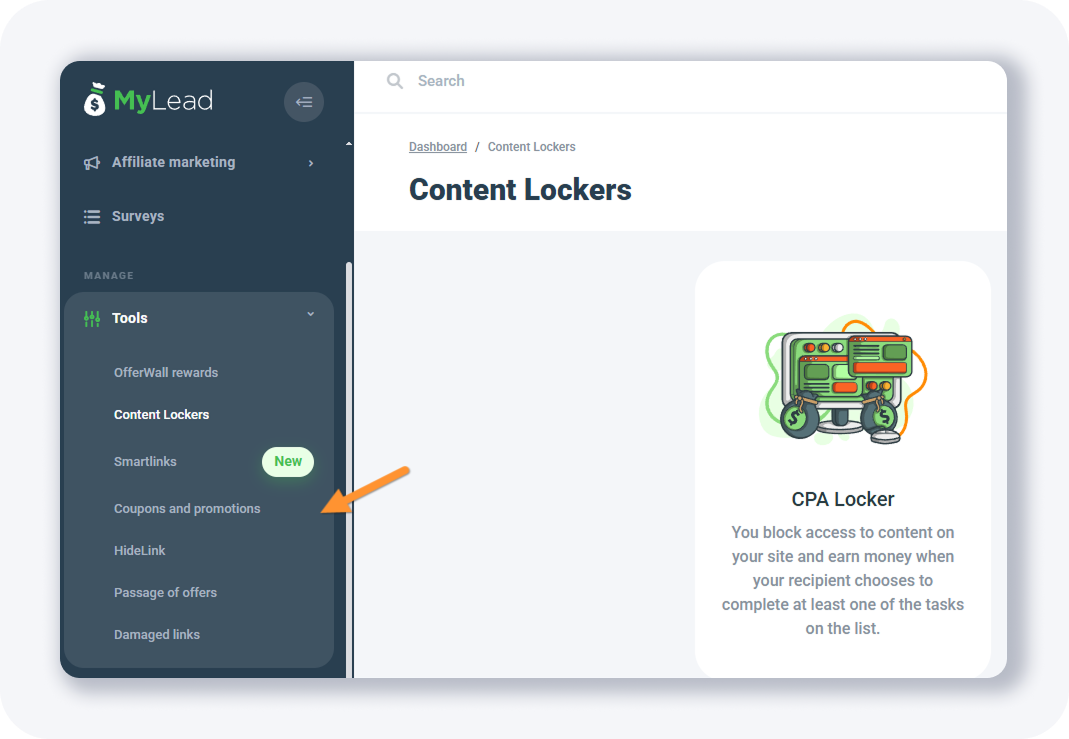
The four tools covered here work like this:
HideLink — in-house link cloaking that hides affiliate links from bots and protects domains from bans.
Passage of offers — a hosted offer page that promotes several campaigns with one link.
Coupons and promotions — a section for campaign-linked discount codes; empty until you join campaigns.
Damaged links — a section that lists broken links; empty on a new account.
Content Lockers, OfferWall rewards, and Smartlinks share this menu but have their own chapters — see the Content Lockers guide and the Smartlinks guide.
What is HideLink and how does it work?
HideLink is an in-house cloaking system that hides your affiliate links from bots on social media and advertising networks, which extends the lifespan of your domains. It creates a safe page — a landing page hosted on your own domain. Bots stay on the safe page, while real users are redirected to the advertiser.
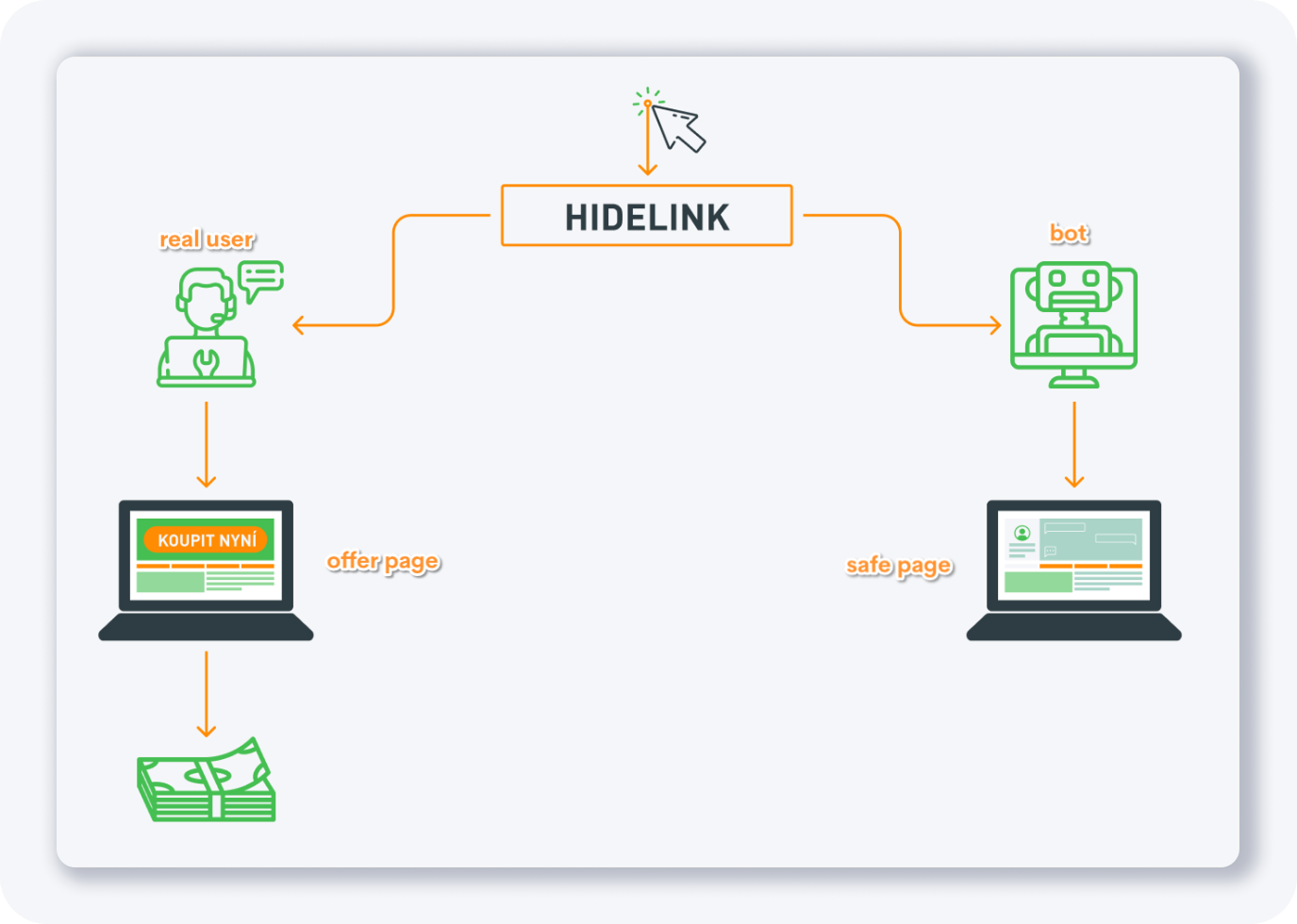
When a bot follows the link you promote, it stays on the safe page and never interacts with the real offer. A real user is redirected to the specific advertiser's page instead. This separation gives the links you promote a much longer lifespan, which is why cloakers like HideLink are recommended for promotion on social media and advertising networks. To use HideLink, you need your own domain and hosting.
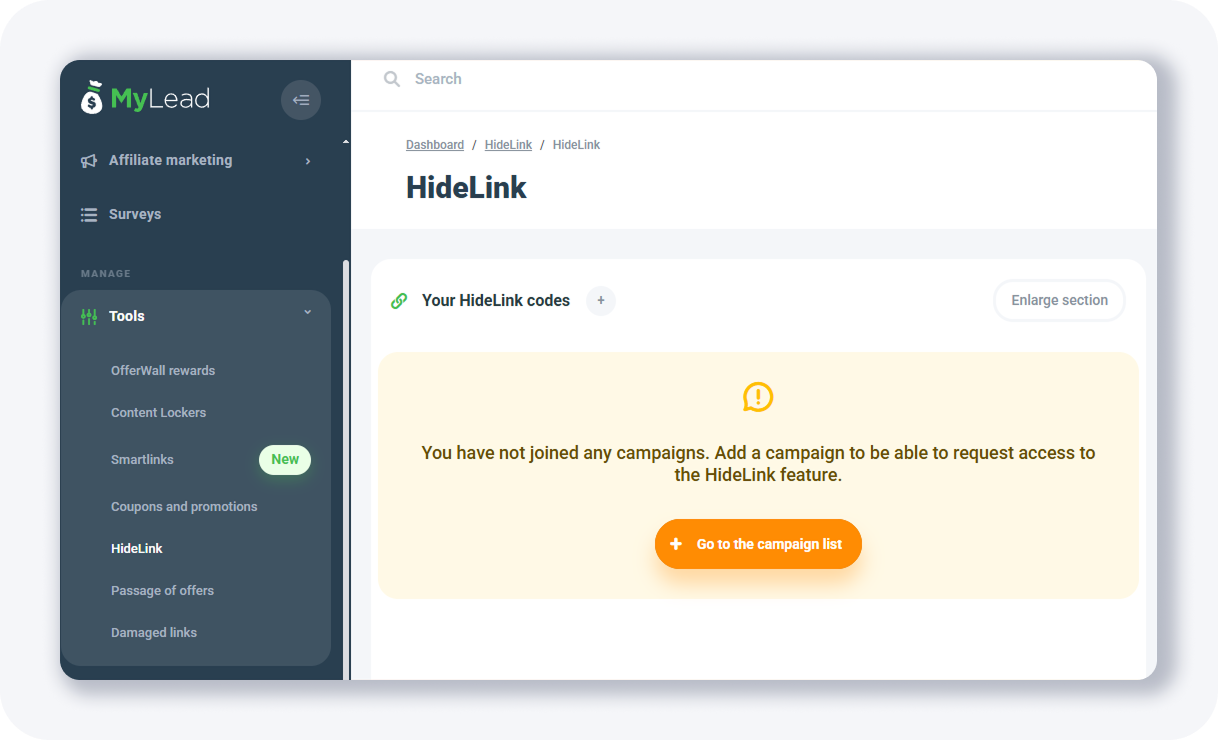
Before you can request HideLink, you must first apply for and join at least one campaign; only then does the tool become available. For background on the feature, read the HideLinks are now available on MyLead announcement, and review which mistakes get you banned on social media before you start.
How do you set up HideLink step by step?
Setting up HideLink runs in two stages: first you apply for tool access, then you create and deploy the cloaked link. The application asks how you will use the tool, your traffic source, and a safe-page URL. After approval, you add a HideLink, name it, and download its PHP code.
You apply for HideLink only after joining a campaign. The application form looks like this:
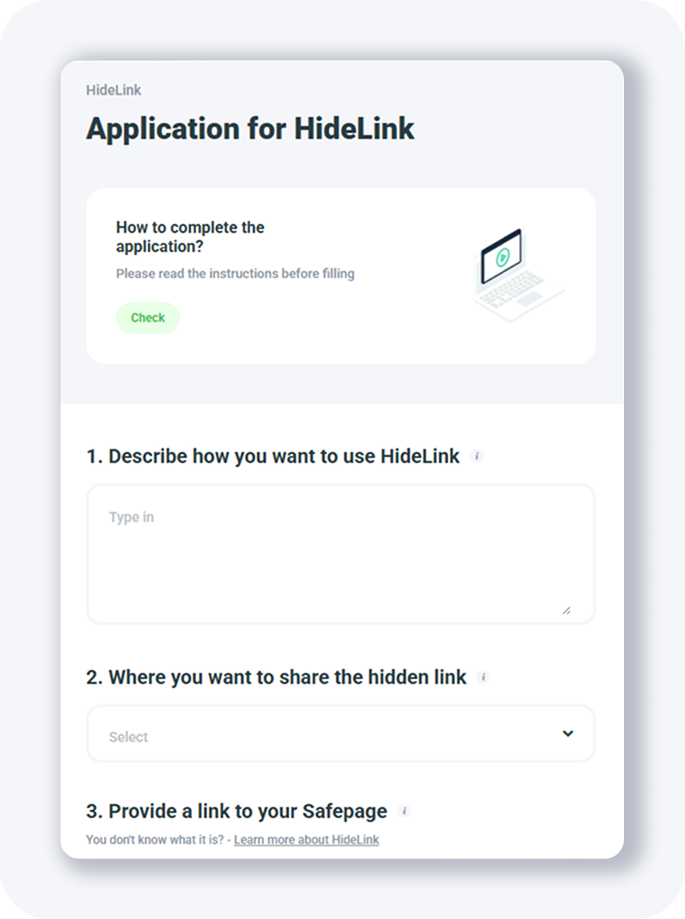
The form requires details on:
How you want to use HideLink — explain how you plan to use the tool and why you need it.
Where you want to share the hidden link — select the traffic source where the hidden link will run.
A link to your safe page — create a safe page, upload it to your server, and paste its URL here.
Then you complete the next step:
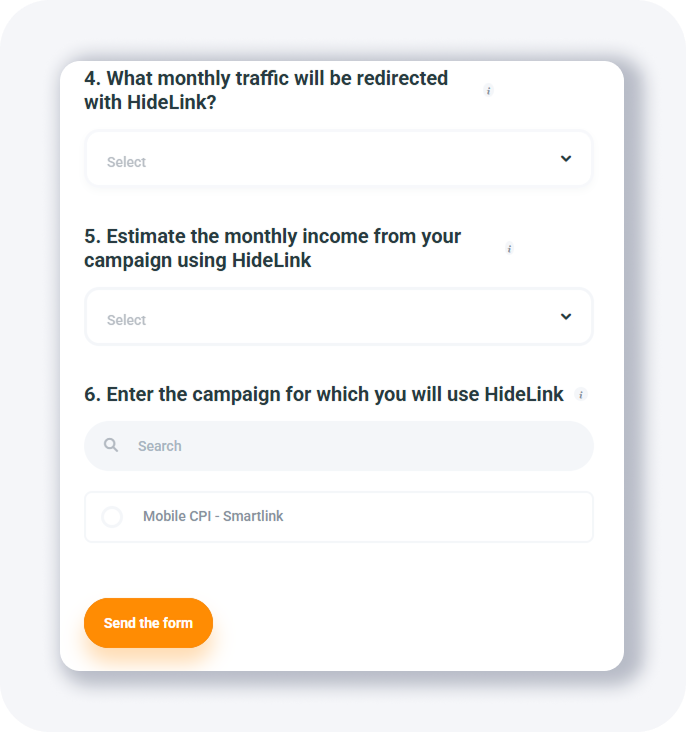
You fill out these fields:
Monthly traffic redirected with HideLink — select the approximate volume of traffic you plan to generate.
Estimated monthly income — select how much you plan to earn using this feature.
Campaign for HideLink — choose one approved campaign that you need the HideLink tool for.
After you submit the form, you wait for approval. If you need help filling it in, follow the dedicated how to complete a HideLink application walkthrough.
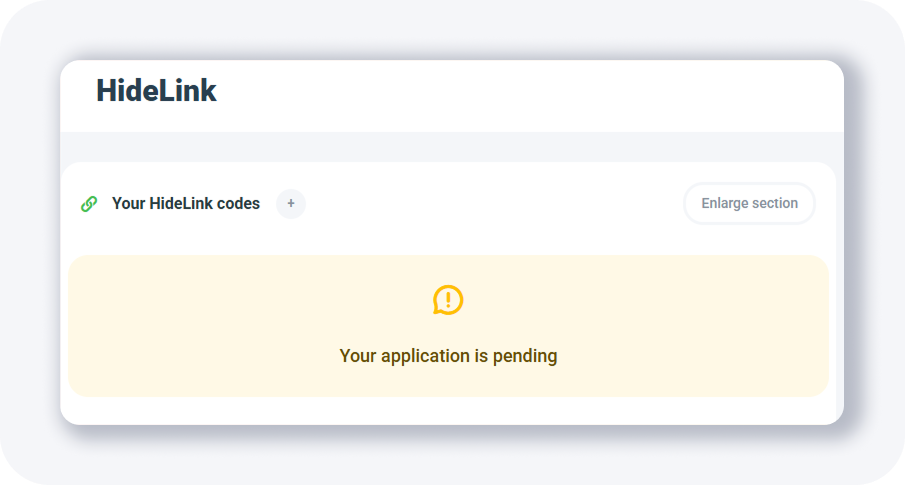
Once it is processed, a notification confirms the tool is ready:
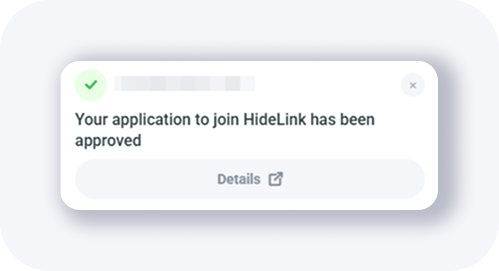
Now you can create the actual HideLink:
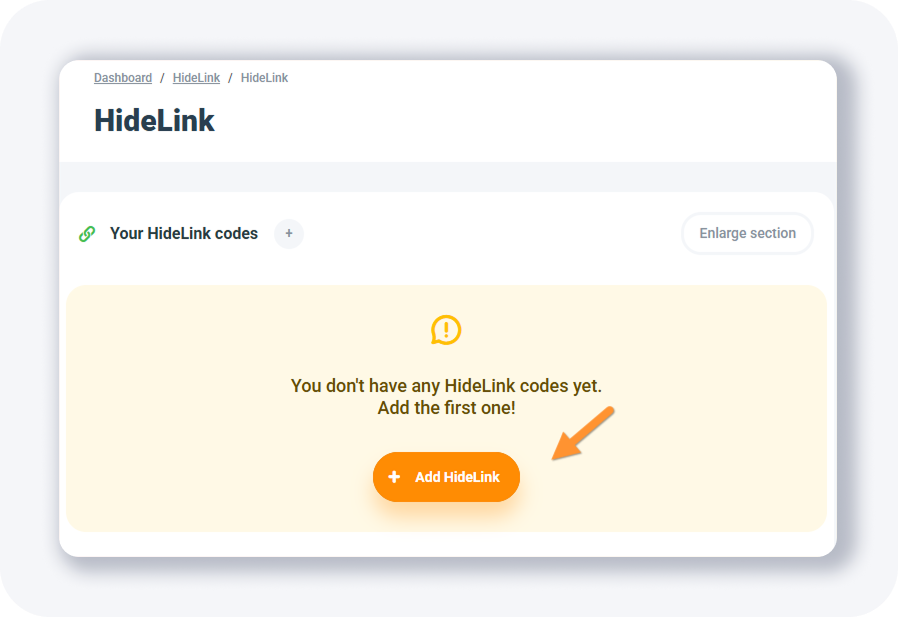
Hit the + Add HideLink button to open the form:
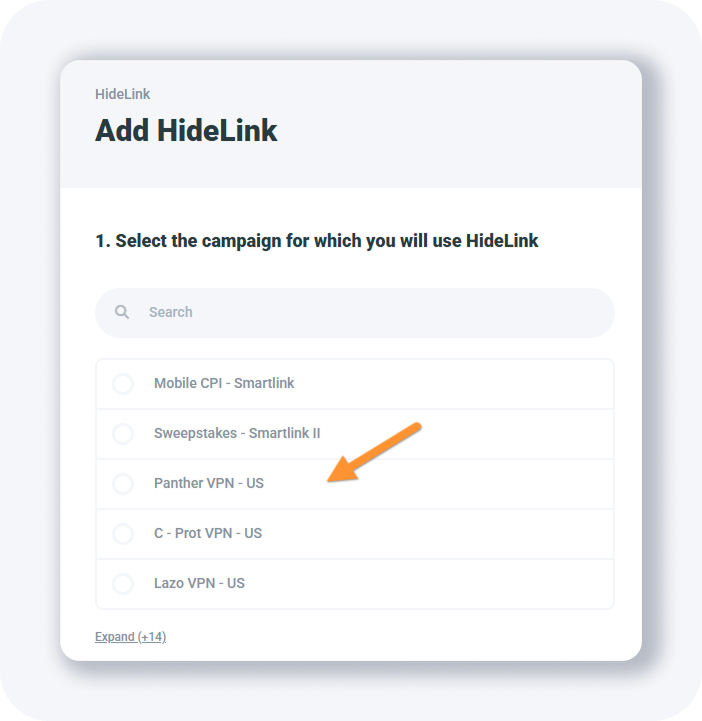
Select the campaign you will use the tool for, then give the HideLink a name, set a safe page that crawlers will see, and choose your traffic source:
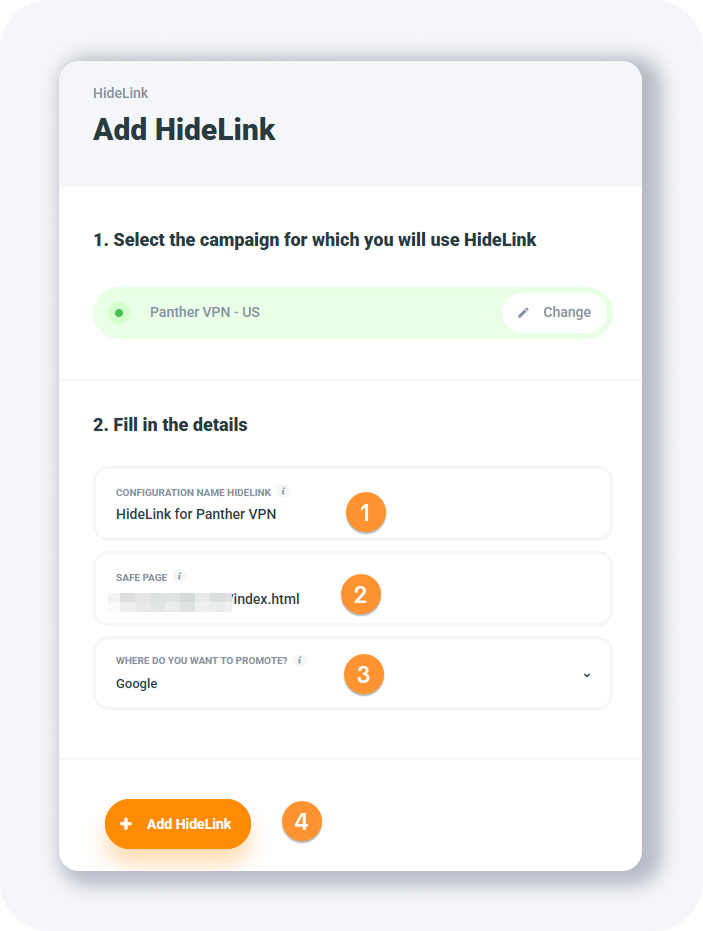
Click + Add HideLink again to save, and the new HideLink appears on your list:
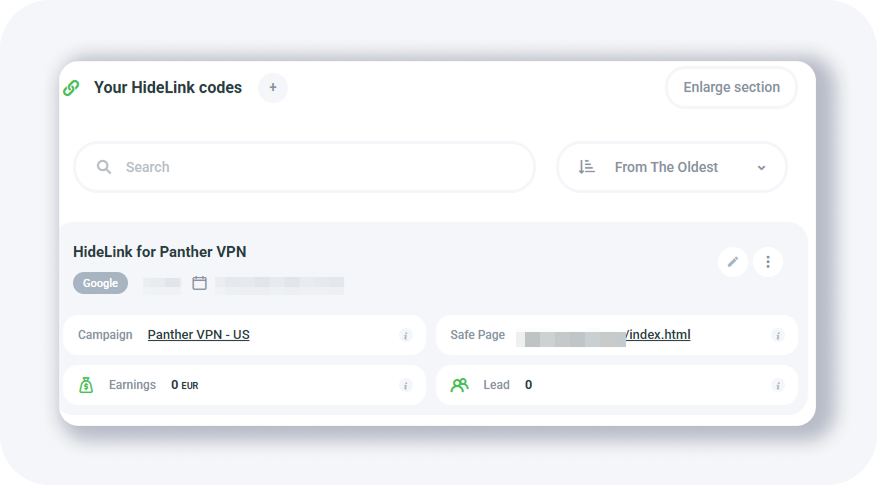
To deploy it, grab the PHP code: click the three dots in the upper-right corner and select Show code.
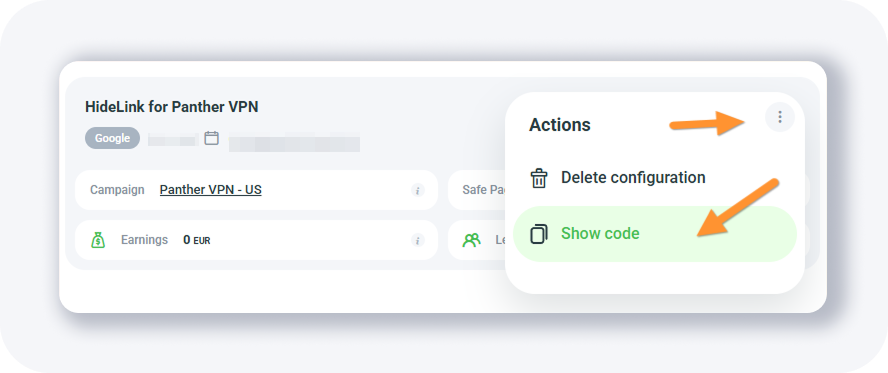
A popup opens with the PHP code:
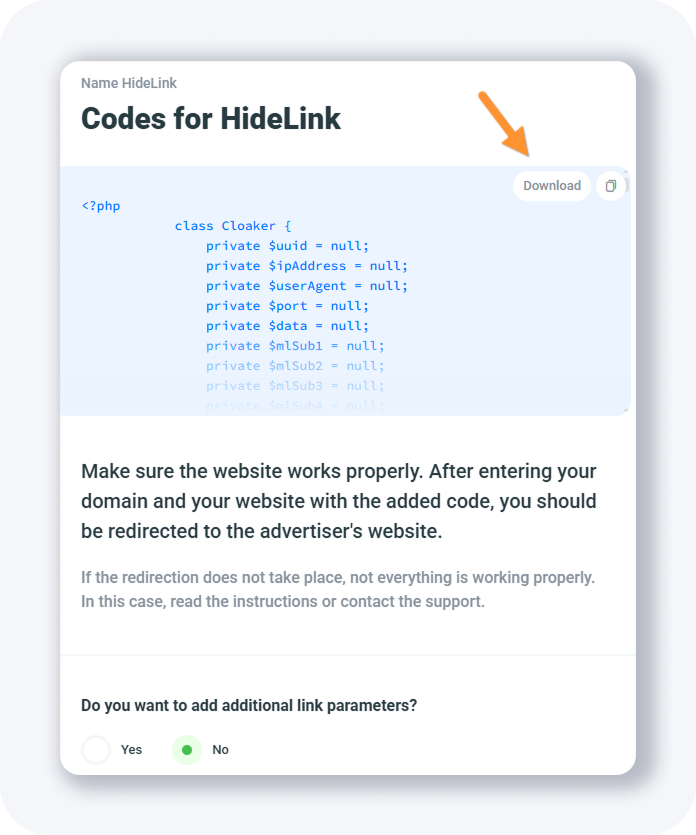
Download the code and place it on your page — it handles crawler detection and shows the safe page when needed. You can also pass additional tracking parameters to the HideLink page if you want.
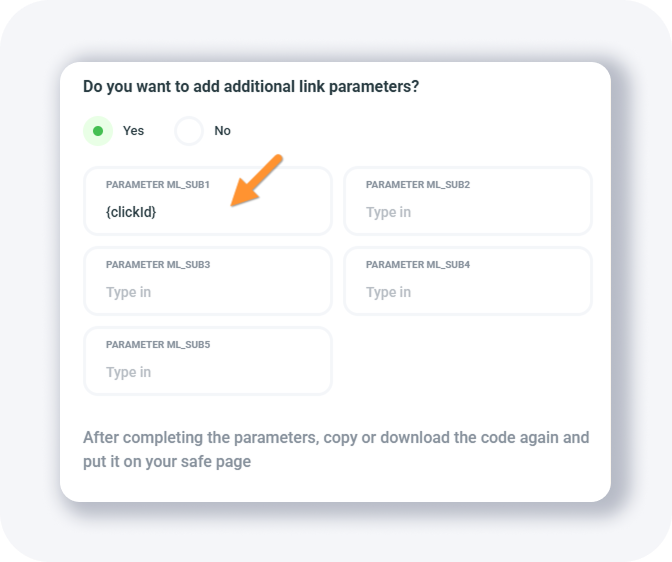
That is how you set up a HideLink for an offer, ready to cloak your offers on Facebook and keep your domains alive longer.
How do you create an offer page in MyLead?
An offer page in MyLead — built with the Passage of offers tool — is a free, hosted sales page that promotes several approved campaigns through a single link, without your own hosting or website. In the offer-page builder you set a name, toggle display options, and select the campaigns to feature.
You can place any affiliate programs you have been granted access to, so one link routes visitors to multiple offers. It works like a standalone landing page, but without arranging your own hosting. You need approved affiliate campaigns before you can add them.
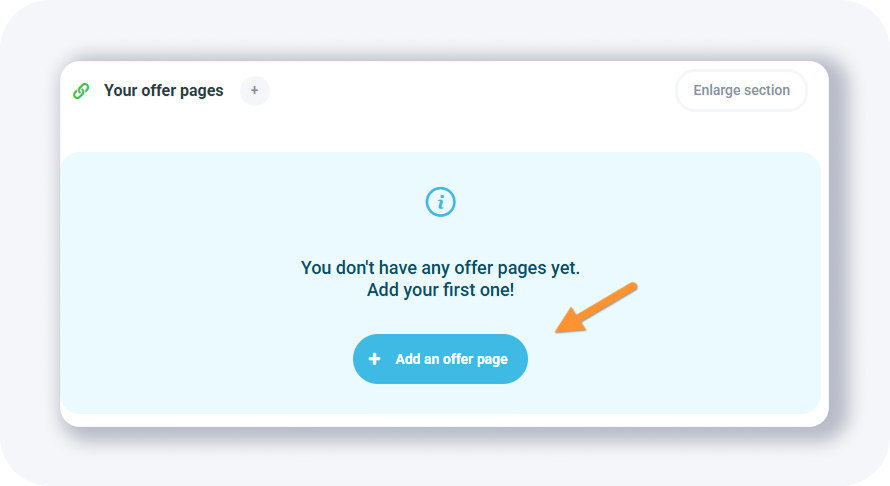
Click + Add an offer page to open the builder popup:
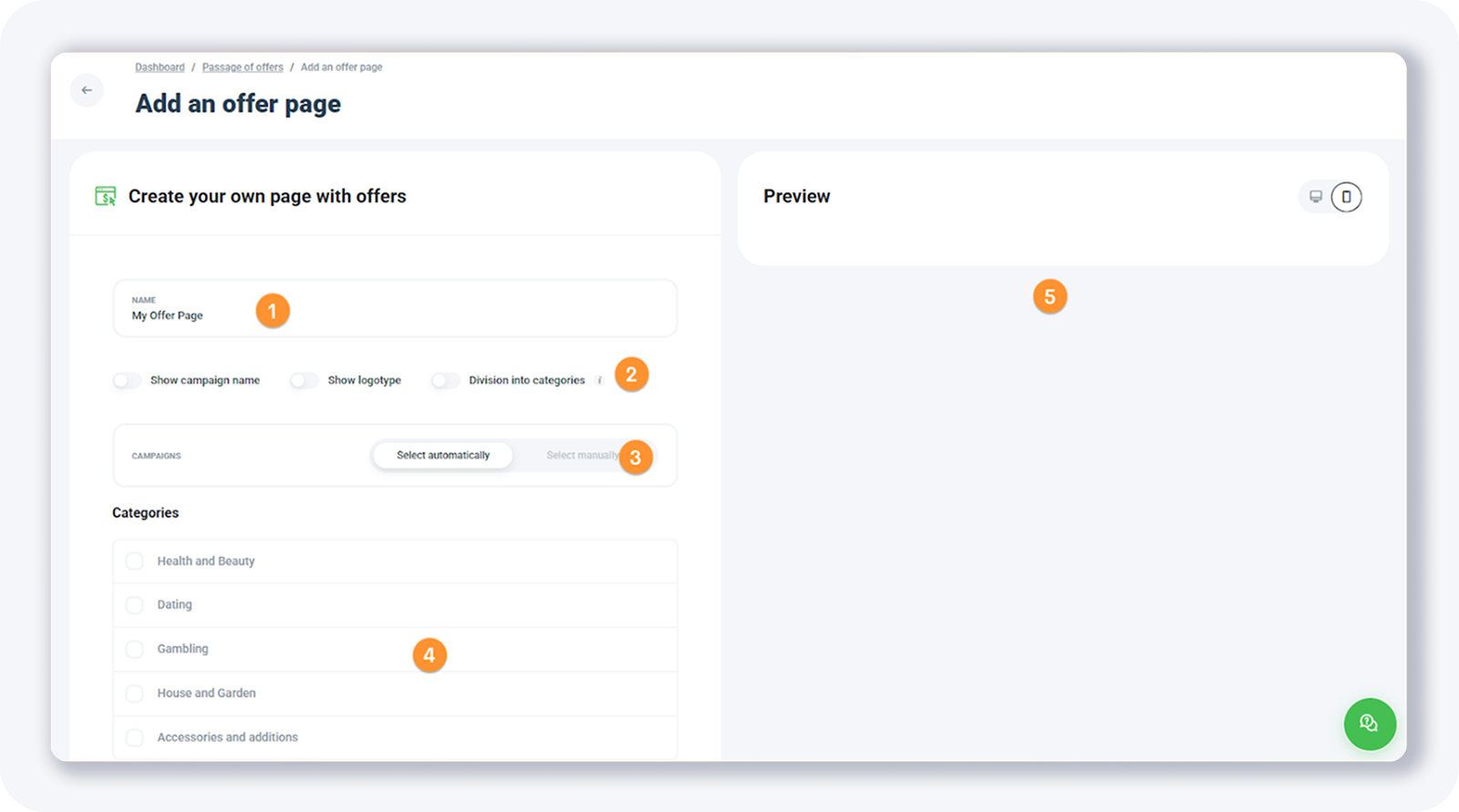
The builder has these fields:
Name — give your offer page a name.
Additional options — toggle display settings: show the campaign name, show the logotype, or divide campaigns into categories.
Campaigns — select approved campaigns automatically or add them manually.
Categories — when using automatic selection, filter campaigns by category here.
Preview panel — your changes appear in the preview on the right side.
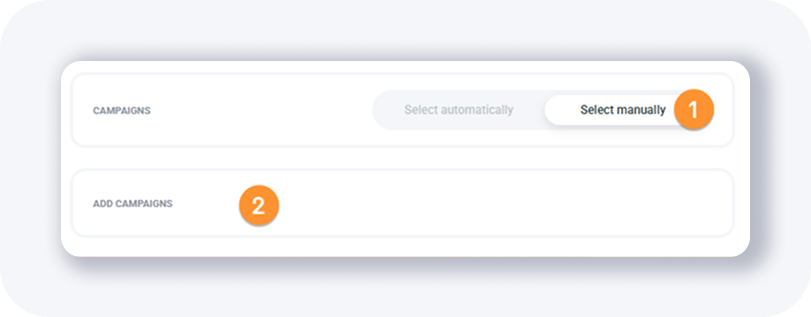
To select campaigns manually, choose the second option and click Add campaigns:
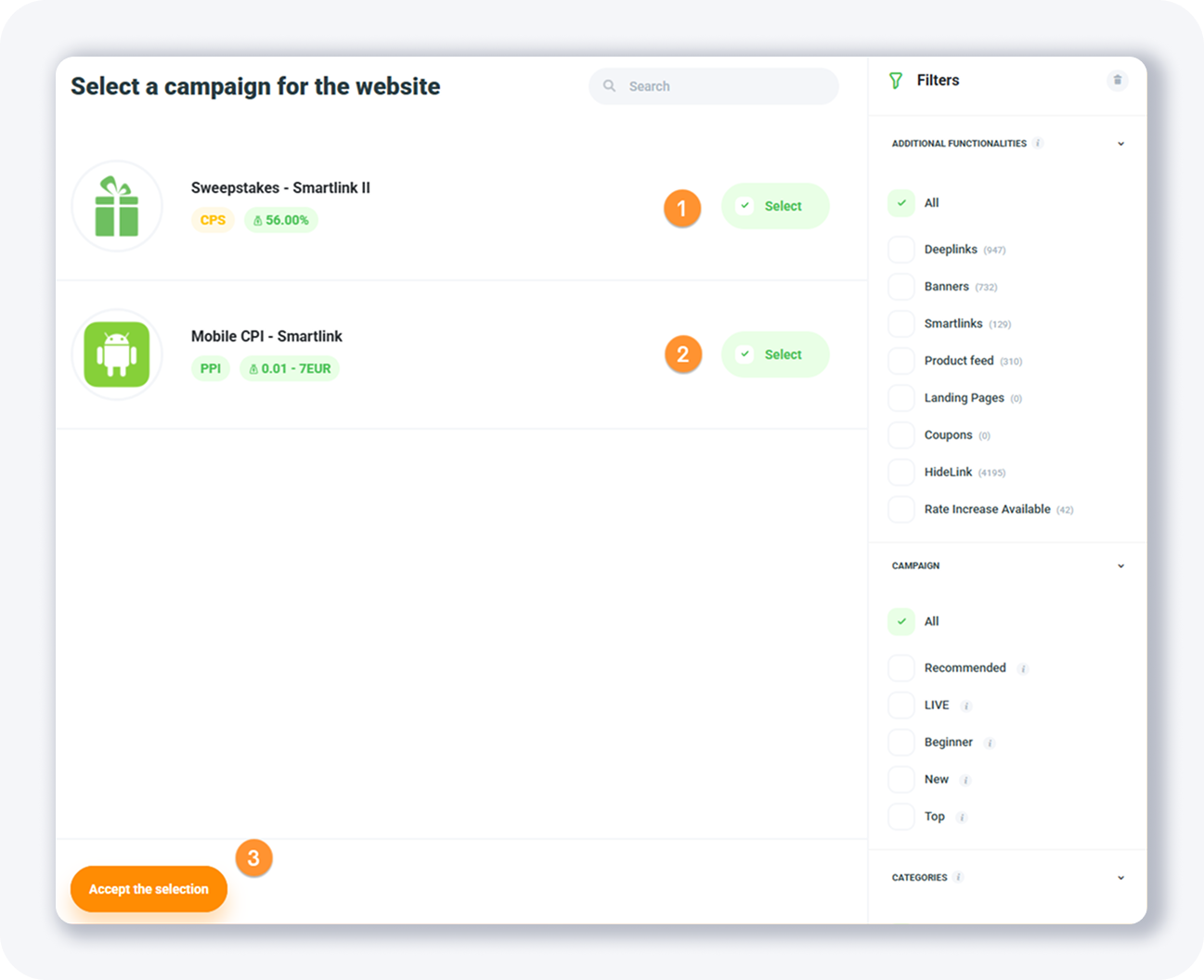
Pick the offers you want on the page and click Accept the selection:
Adjust the theme appearance if you wish:
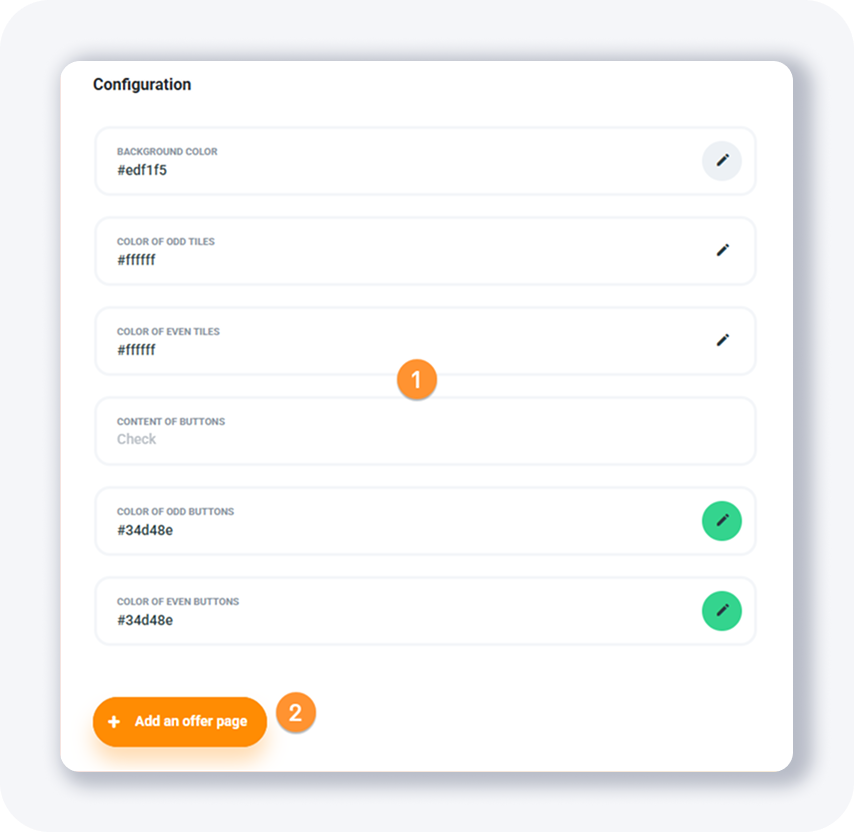
When you are done, click + Add an offer page to save it:
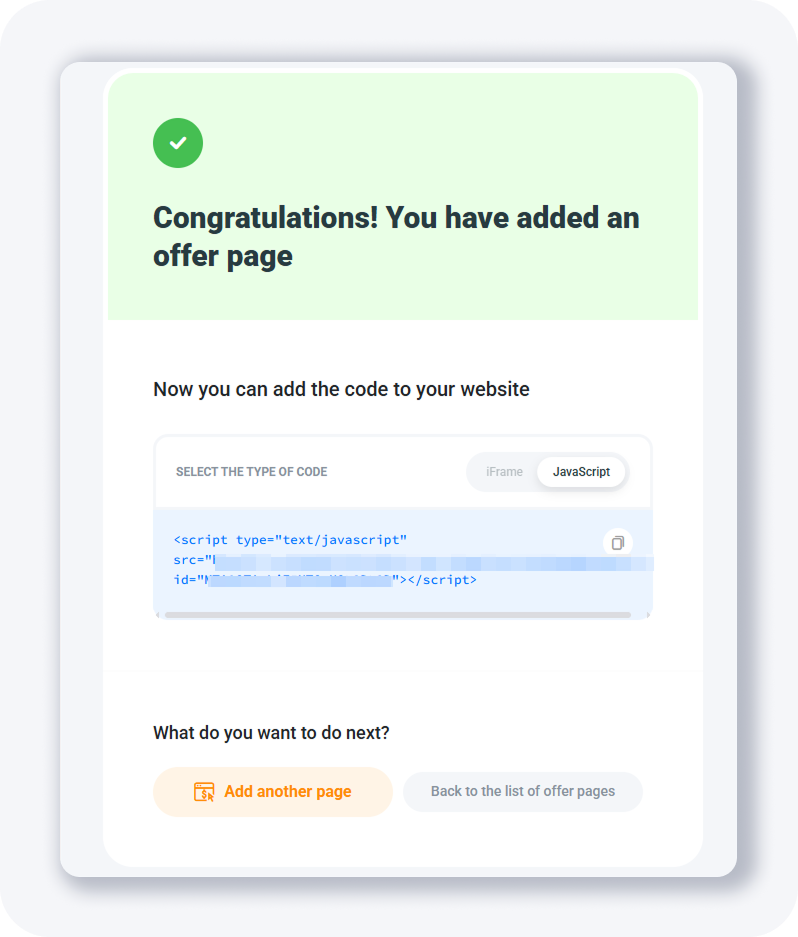
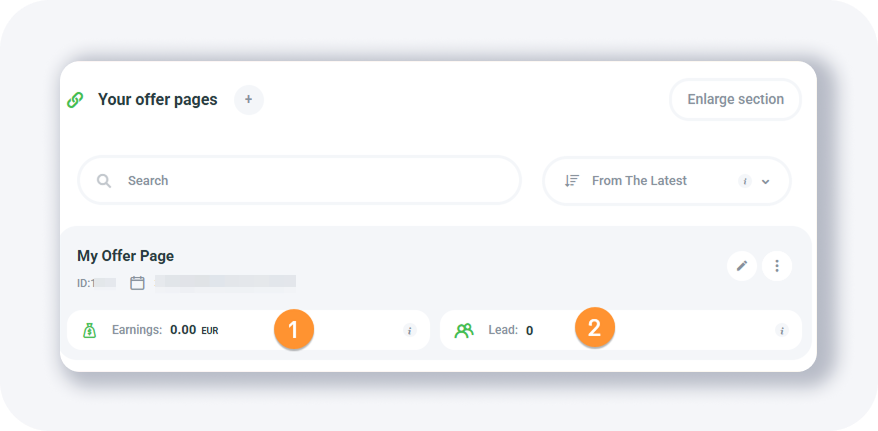
Your offer page is ready — embed it on your site with an iframe or JavaScript code. Back on the list of all offer pages, each one shows a field with total earnings and leads:
What are Coupons and promotions and Damaged links?
Coupons and promotions and Damaged links are two utility sections in the Tools menu. Coupons and promotions lists campaign-linked discount codes, while Damaged links flags broken links across your offers. On a new MyLead account both sections appear empty, because they populate only after you join campaigns and run active offers.
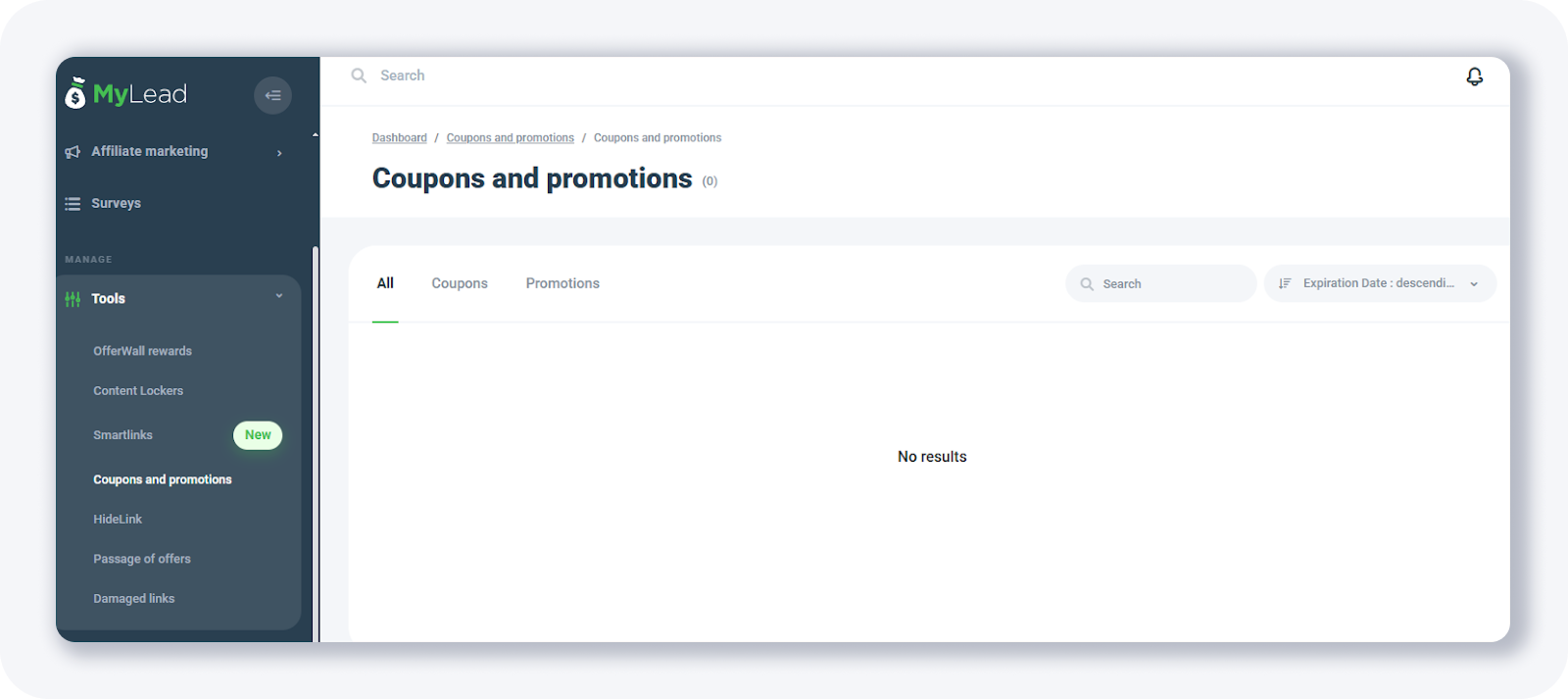
On a fresh account, Coupons and promotions showed no entries; the section fills in once you join campaigns that provide discount codes.
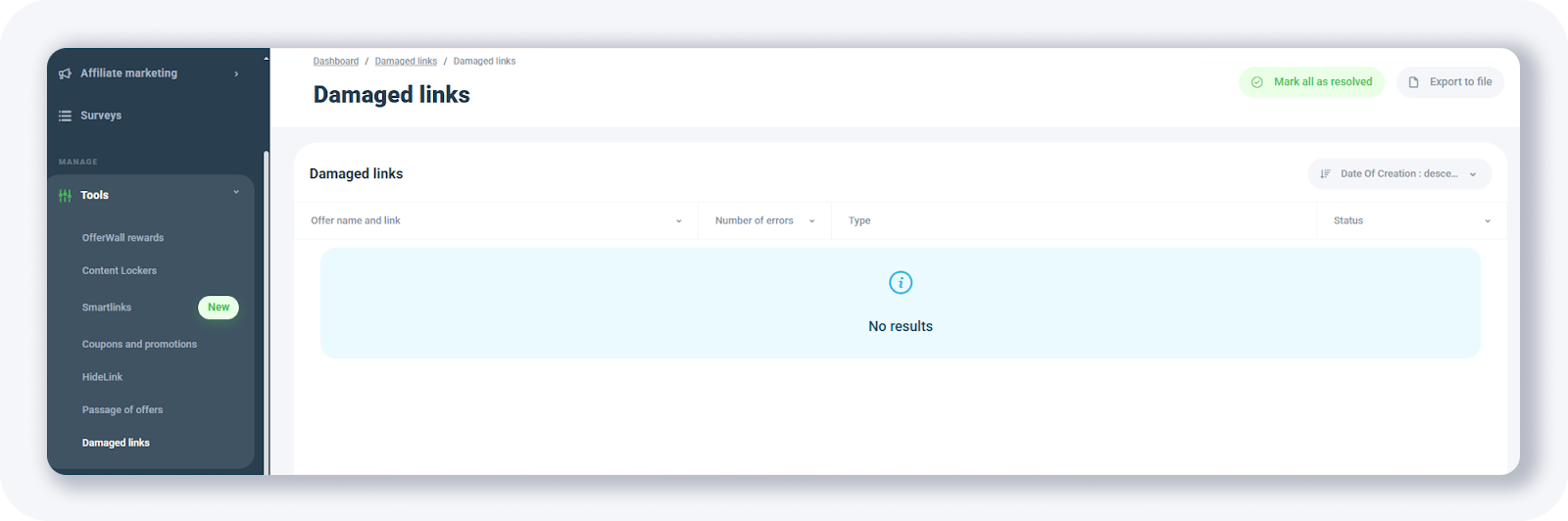
Damaged links was also empty on a new account; it surfaces broken links only once you have active offers to monitor.
Key takeaways
HideLink is MyLead's in-house cloaking tool that keeps bots on a safe page and sends real users to the advertiser, extending your domains' lifespan.
To use HideLink you need your own domain and hosting, plus at least one approved campaign before you can apply.
Deploying a HideLink means downloading its PHP code and placing it on your page to handle the redirect.
Passage of offers builds a free hosted offer page that promotes several approved campaigns through one link, with no hosting of your own.
Coupons and promotions and Damaged links stay empty on new accounts and fill in once you join campaigns and run offers.
Complete MyLead Guide - Chapter list
1. How to register on MyLead - click to read
2. Main Dashboard - click to read
3. My Profile - click to read
4. Offers (Affiliate Campaigns) - click to read
5. Surveys - click to read
6. OfferWall Rewards - click to read
7. Content Lockers - click to read
CPA Locker - click to read
Captcha Locker - click to read
File Locker - click to read
Mobile Rewards - click to read
Icent Campaigns - click to read
Offer API - click to read
8. Smartlniks - click to read
9. Free Affiliate Tools - now reading
Coupons and promotions - now reading
HideLink - now reading
Passage of Offers - now reading
Damaged Links - now reading
10. Withdrawals
11. Statistics and Reports - click to read
12. Postbacks - click to read
13. Adding MyLead as an Affiliate Network to your Tracker - click to read
14. How to Add MyLead Offers to the Tracker - click to read
15. How to Add MyLead Lockers (as an Offer) to Tracker - click to read
16. How to Add MyLead Smartlinks (as an Offer) to Tracker - click to read
17. Community and News - click to read
FAQ
1. Is HideLink free for MyLead publishers?
Yes. HideLink is one of the free tools in the MyLead Tools menu. You only need your own domain and hosting for the safe page, plus an approved campaign to apply for access.
2. Do you need your own domain to use HideLink?
Yes. HideLink builds a safe page on your own domain, so you must have your own domain and hosting before you deploy the PHP code that handles the redirect.
3. Can one offer page promote several campaigns?
Yes. The Passage of offers tool builds an offer page that promotes several approved campaigns through a single link, so you do not have to send visitors straight to one advertiser.
4. Why are Coupons and promotions and Damaged links empty?
Both sections appear empty on a new MyLead account. They populate only after you join campaigns and run active offers that provide discount codes or links to monitor.
Summary
The MyLead Tools menu adds two working utilities to your account: HideLink for cloaking affiliate links behind a safe page, and Passage of offers for building free hosted offer pages. Use HideLink whenever you need to protect links from bans, and Passage of offers when one link should carry several campaigns.
Have any questions? Feel free to reach us through our channels.