
Blog / MyLead Guide
What Is the MyLead Dashboard and How Do You Navigate It?
This article is updated regularly
Last update:
08 December 2025
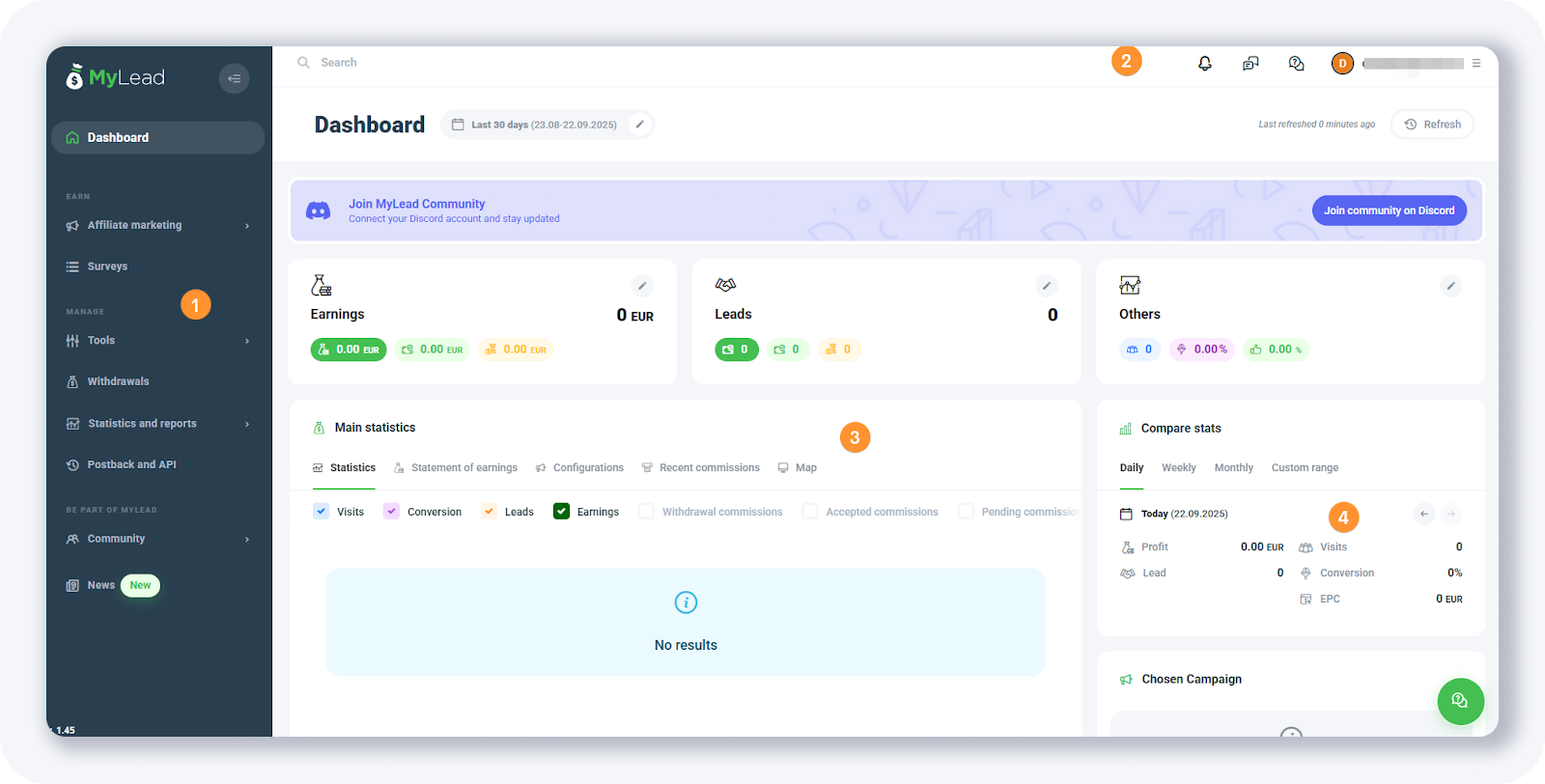
The MyLead dashboard is the central control panel for publishers, organized into four zones: the left navigation menu, the top bar, the main statistics panel, and the right-side widgets. From here you access affiliate campaigns, traffic sources, tools, withdrawals, and reports. Each zone groups related functions, so you manage your entire affiliate activity from one screen.
This guide walks you through every section of the MyLead dashboard, so you know exactly where each feature lives and what it does.
What you'll learn from this article:
how the MyLead dashboard is divided into four functional zones,
which items the left menu contains and what each one does,
where to find search, notifications, conversations, and support,
what statistics the main panel and side widgets display.
What is the MyLead main dashboard?
The MyLead main dashboard is the first screen you see after logging in to your publisher account in 2026. It summarizes your earnings, leads, and key statistics, and links to every platform function through a fixed left menu and top bar. The layout stays consistent across the panel, so navigation is predictable.
After you complete the free registration, this screen becomes your home base for managing campaigns and tracking results. The four zones are numbered in the screenshot below.
What is in the MyLead left menu?
The left menu is the primary navigation column in the MyLead dashboard. It lists nine sections that cover the full publisher workflow: Dashboard, Affiliate marketing, Surveys, Tools, Withdrawals, Statistics and reports, Postback and API, Community, and News. Each entry opens a dedicated page in a single click.
Here is what each left-menu item does:
Dashboard — the page you are currently viewing.
Affiliate marketing — groups three sub-pages:
Affiliate campaigns — every offer in MyLead; apply to run them via the affiliate campaigns guide.
Traffic sources — add at least one before promoting.
Your campaigns — offers you applied for, plus approved ones.
Surveys — earn money by completing simple surveys.
Tools — utilities such as HideLink, the internal cloaker; see the MyLead tools guide.
Withdrawals — your payment history.
Statistics and reports — 10 ready-made reports.
Postback and API — add your tracker postback URL.
Community — the internal MyLead forum.
News — updates posted 2–3 times a week.
What does the top bar include?
The top bar runs across the top of every MyLead page and holds account-wide controls. It contains the global search form, notifications, conversations, support, and the My Profile dropdown. These elements stay visible no matter which section you open, giving you constant access to messages, alerts, and account settings.
Here is what the top bar offers:
Search form — global search for offers or help articles.
Notifications — alerts like campaign accepted or rejected.
Conversations — chat with members or reach support.
Support — FAQ page and account-manager contacts.
My Profile — dropdown to general settings and activity; details in the My Profile guide.
What do the main panel and side widgets show?
The main panel and side widgets display your performance data. The central panel shows three summary cards — Earnings, Leads, and Others — above a Main statistics chart that fills in once you run offers and send traffic. The right column adds Compare stats, Chosen Campaign, News, and Recommended campaigns widgets.
The panel and side widgets cover your performance data:
Earnings, Leads, Others — three summary cards at the top.
Main statistics — central chart that fills after you run offers; deep-dive in statistics and reports.
Compare stats — daily, weekly, and monthly comparison.
Chosen Campaign — quick access to a selected campaign.
Recommended campaigns — suggestions at the bottom of the page.
Public chat — unlocks after you earn 25 EUR.
Once your Earnings card shows a balance, you can withdraw your earnings from the Withdrawals page.
Key takeaways
The MyLead dashboard groups every publisher function into four zones, so navigation stays predictable.
The left menu holds nine sections, from Affiliate marketing to Postback and API.
The top bar keeps search, notifications, conversations, and support on every page.
The main panel summarizes Earnings, Leads, and Others, with detailed stats once traffic flows.
Public chat unlocks after you earn 25 EUR, and 10 ready-made reports cover your analytics.
Complete MyLead Guide - Chapter list
1. How to register on MyLead - click to read
2. Main Dashboard - now reading
3. My Profile - click to read
4. Offers (Affiliate Campaigns) - click to read
5. Surveys - click to read
6. OfferWall Rewards - click to read
7. Content Lockers - click to read
CPA Locker - click to read
Captcha Locker - click to read
File Locker - click to read
Mobile Rewards - click to read
Icent Campaigns - click to read
Offer API - click to read
8. Smartlniks - click to read
9. Free Affiliate Tools - click to read
Coupons and promotions - click to read
HideLink - click to read
Passage of Offers - click to read
Damaged Links - click to read
10. Withdrawals - click to read
11. Statistics and Reports - click to read
12. Postbacks - click to read
13. Adding MyLead as an Affiliate Network to your Tracker - click to read
14. How to Add MyLead Offers to the Tracker - click to read
15. How to Add MyLead Lockers (as an Offer) to Tracker - click to read
16. How to Add MyLead Smartlinks (as an Offer) to Tracker - click to read
17. Community and News - click to read
FAQ
1. How do I add a traffic source in MyLead?
Open Affiliate marketing → Traffic sources in the left menu and add at least one source. You need a registered traffic source before you can run offers.
2. Where do I see my earnings in MyLead?
Your balance appears in the Earnings card at the top of the main panel, with full figures in the Statistics and reports section.
3. How do I unlock public chat in MyLead?
The public chat at the bottom of the dashboard unlocks once your account earns at least 25 EUR. Until then, it stays hidden.
4. What is HideLink in MyLead?
HideLink is MyLead's internal link cloaker, located in the Tools section. It masks your affiliate URL to protect campaigns and keep your source clean.
Summary
The MyLead dashboard centralizes affiliate work into four zones: the left menu for navigation, the top bar for account controls, the main panel for statistics, and the side widgets for quick insights. Knowing where each feature sits makes daily management faster. Create your free MyLead publisher account and start exploring the panel.
Have any questions? Feel free to reach us through our channels.