Blog / MyLead Guide
Complete MyLead Guide - How to Add MyLead Offers to a Tracker?
This article is updated regularly
Last update:
08 December 2025
Adding a MyLead offer to a tracker means recreating your campaign's affiliate link inside the tracker so it can record clicks and conversions. In MyLead, you copy the campaign tracking link from Your campaigns, create a new offer in your tracker, paste the link, select MyLead as the affiliate network, and append the ml_sub1 click ID token.
This guide shows you how to add MyLead offers to three popular trackers — BeMob, Skro, and MaxConv — step by step, including the tracking token each one needs.
What you'll learn from this article:
where to find and copy your MyLead campaign tracking link,
how to add a MyLead offer to BeMob, Skro and MaxConv,
which trackers append the ml_sub1 token automatically and which need it manually,
how the click ID token connects your tracker to MyLead conversions.
How do you add a MyLead offer to a tracker?
Adding a MyLead offer to a tracker takes four steps: open Your campaigns in MyLead, pick the campaign you want to promote, copy its tracking link, then create a matching offer in your tracker. You paste the link, choose MyLead as the affiliate network, and add the ml_sub1 click ID parameter so conversions report back correctly.
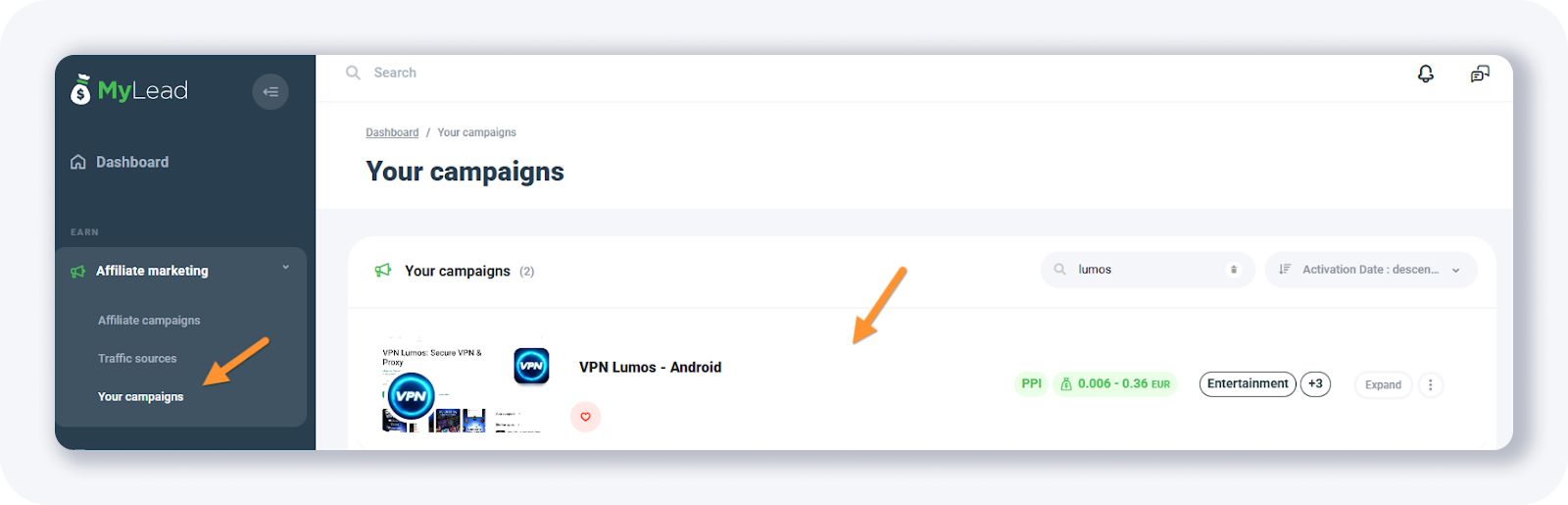
MyLead must already be set up as an affiliate network in your tracker. Open your MyLead campaigns and click the offer you want to promote.
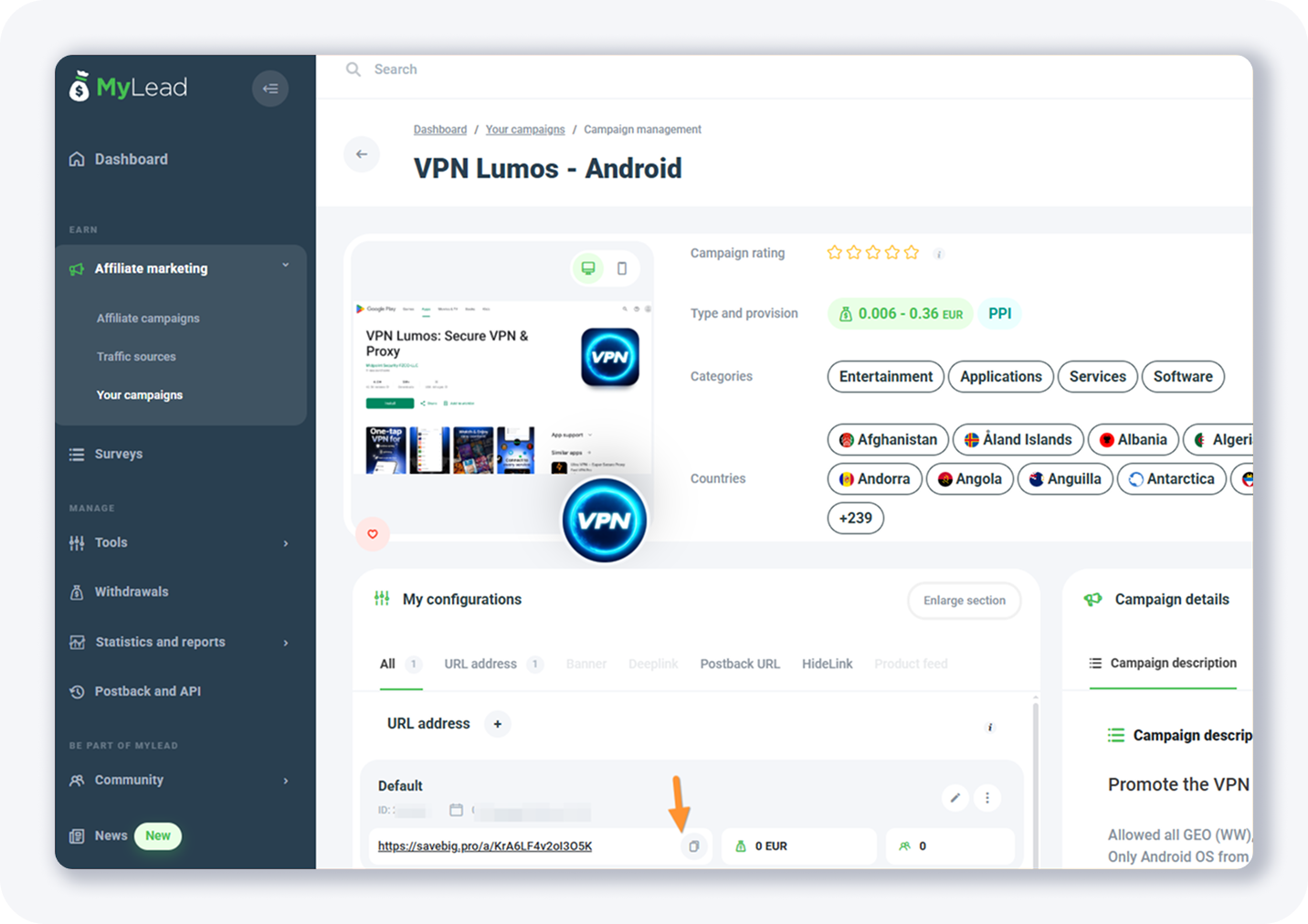
Find the campaign tracking link on the single campaign page and copy it.
How do you add a MyLead offer to BeMob?
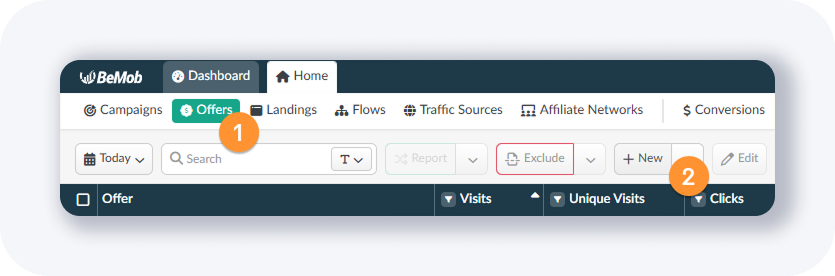
In BeMob, open Offers from the top menu and click + New. In the Create Offer popup, enter the offer name, select the country (or leave Global), pick MyLead as the affiliate network, paste the offer URL, and click Save. BeMob automatically appends the ml_sub1 click ID parameter, so you don't add the token manually.
In the Create Offer popup, the Click ID Parameter note confirms BeMob already appends ml_sub1 for you. If you have not configured the platform yet, follow the guide on how to set up a tracker first.

How do you add a MyLead offer to Skro?
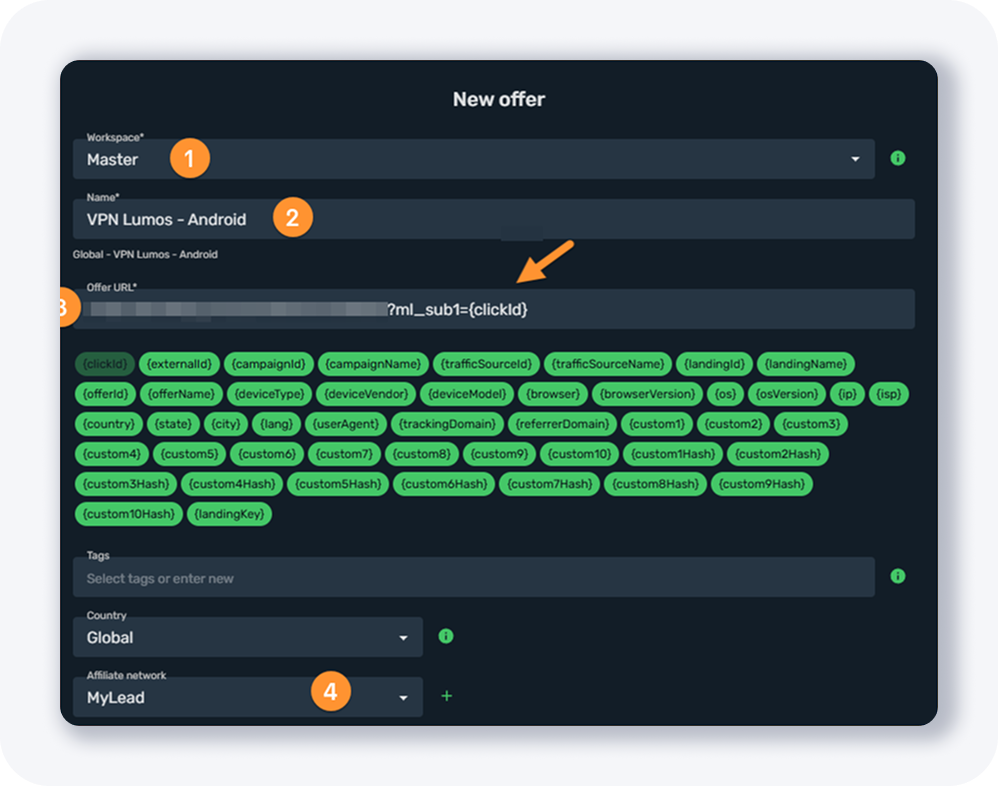
In Skro, open the Offers page and click + Create. In the New offer popup, select the workspace, enter the offer name, choose the country, pick MyLead as the affiliate network, and paste the offer URL. Skro does not add the token automatically, so manually append ?ml_sub1={clickId} to the end of the URL, then click Save & Close.
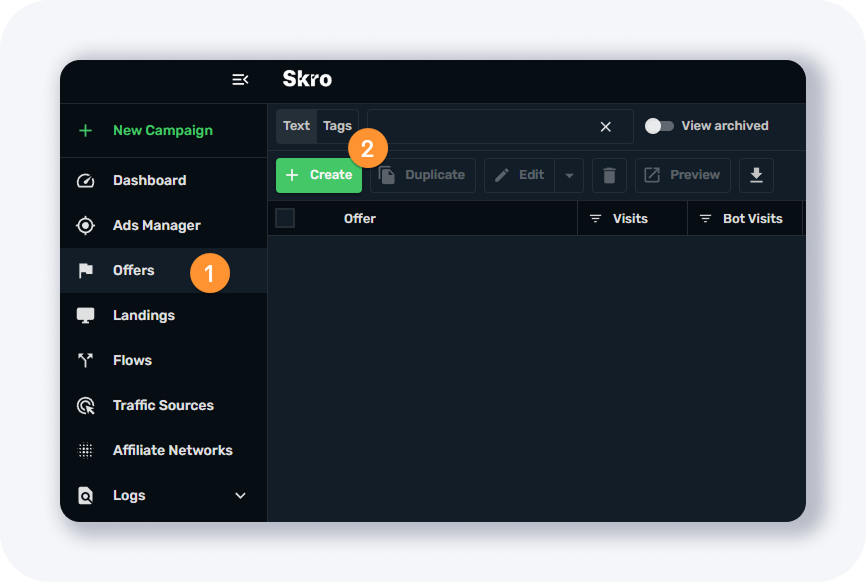
The New offer popup is where you paste the URL and add the token. The same workflow applies when you add MyLead Smartlinks to your tracker.
How do you add a MyLead offer to MaxConv?
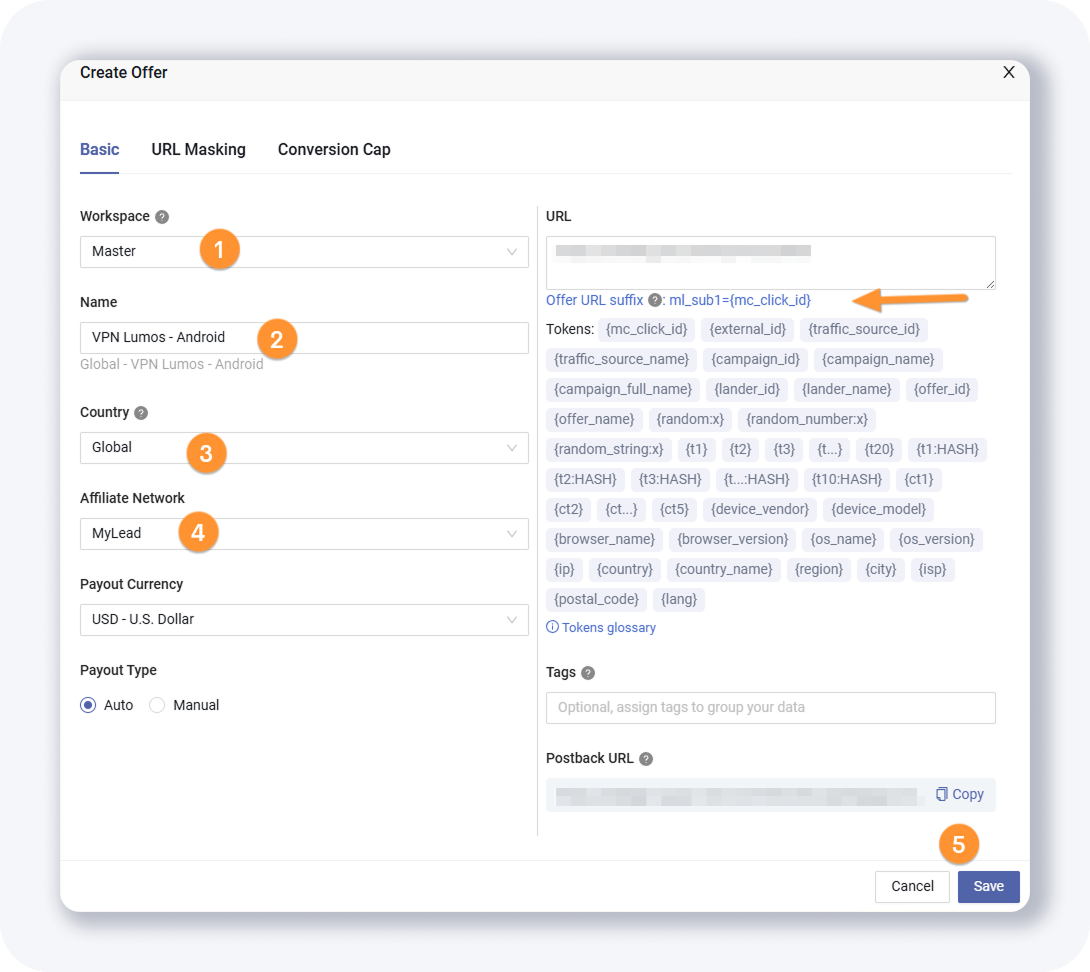
In MaxConv, open the Offers page and click + Create. In the Create Offer popup, select the workspace, enter the offer name, set the country, choose MyLead as the affiliate network, paste the offer URL, and click Save. Like BeMob, MaxConv automatically adds the ml_sub1={mc_click_id} suffix, so no manual token is required.

The Create Offer popup shows the Offer URL suffix MaxConv adds for you. If your tracker does not append the token automatically, always add it manually — otherwise conversions are not attributed. Next, configure postbacks so MyLead reports every conversion to your tracker.
Key takeaways
A MyLead offer is simply your campaign tracking link recreated inside the tracker.
Copy the link from the single campaign page in Your campaigns before opening your tracker.
BeMob and MaxConv append the ml_sub1 click ID token automatically.
Skro requires you to add ?ml_sub1={clickId} manually at the end of the URL.
Always select MyLead as the affiliate network so payouts and conversions sync.
Complete MyLead Guide - Chapter list
1. How to register on MyLead - click to read
2. Main Dashboard - click to read
3. My Profile - click to read
4. Offers (Affiliate Campaigns) - click to read
5. Surveys - click to read
6. OfferWall Rewards - click to read
7. Content Lockers - click to read
CPA Locker - click to read
Captcha Locker - click to read
File Locker - click to read
Mobile Rewards - click to read
Icent Campaigns - click to read
Offer API - click to read
8. Smartlniks - click to read
9. Free Affiliate Tools - click to read
Coupons and promotions - click to read
HideLink - click to read
Passage of Offers - click to read
Damaged Links - click to read
10. Withdrawals - click to read
11. Statistics and Reports - click to read
12. Postbacks - click to read
13. Adding MyLead as an Affiliate Network to your Tracker - click to read
14. How to Add MyLead Offers to the Tracker - now reading
15. How to Add MyLead Lockers (as an Offer) to Tracker - click to read
16. How to Add MyLead Smartlinks (as an Offer) to Tracker - click to read
17. Community and News - click to read
FAQ
1. What is the ml_sub1 token in MyLead?
The ml_sub1 parameter is MyLead's click ID token. It passes your tracker's unique click ID into MyLead so each conversion is matched to the click that generated it.
2. Do I need to add the click ID token manually?
It depends on the tracker. BeMob and MaxConv append the token automatically, while Skro needs you to add ?ml_sub1={clickId} to the end of the offer URL yourself.
3. Where do I find the MyLead campaign tracking link?
Open Your campaigns in MyLead, click the campaign you want to promote, and copy the tracking link shown on the single campaign page.
4. Which affiliate network should I select in the tracker?
Always select MyLead as the affiliate network when creating the offer, so it links to your MyLead postback settings and conversions sync correctly.
Summary
Adding a MyLead offer to a tracker comes down to copying your campaign tracking link, creating the offer, selecting MyLead as the affiliate network, and adding the ml_sub1 click ID token where needed. BeMob and MaxConv handle the token automatically, while Skro needs it manually. The same steps apply when adding MyLead Lockers to your tracker.
Have any questions? Feel free to reach us through our channels.