Blog / MyLead Guide
Complete MyLead Guide - Adding MyLead as Affiliate Network to a Tracker
This article is updated regularly
Last update:
17 December 2025
Now that I’ve explained how to easily set up a working postback between MyLead and your tracker, let me just show how to add MyLead to your tracker, before I show how to add MyLead offers/lockers/smartlinks as offers.
Adding MyLead to BeMob Tracker
Login to your BeMob panel and select Affiliate Networks from the main menu.
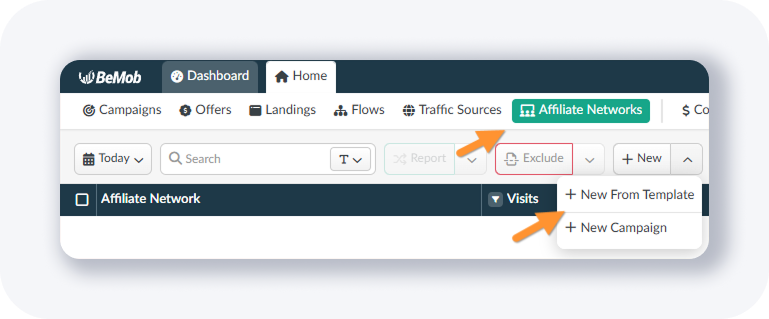
Select + New From Template from the + New drop-down menu.
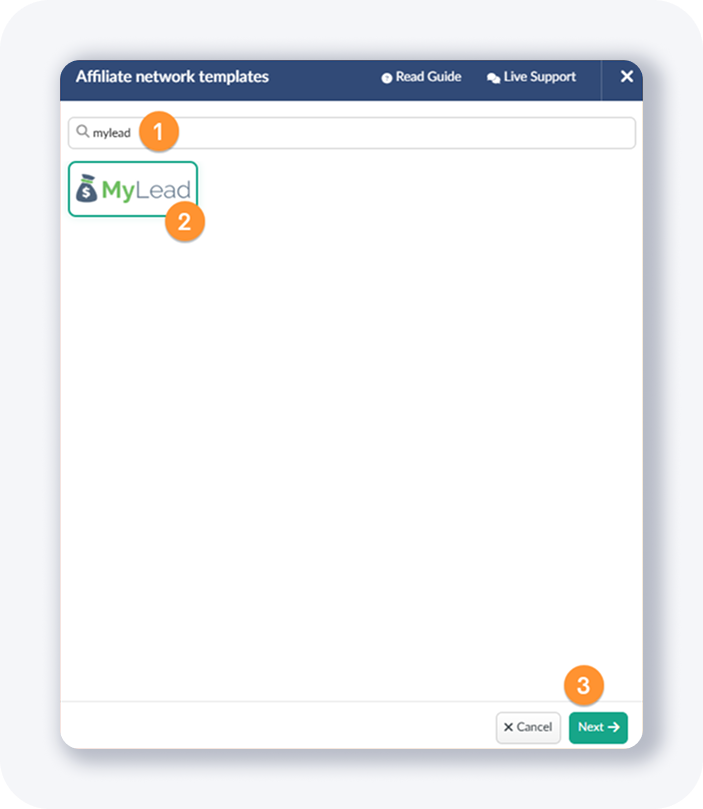
Search for “mylead” and click on the MyLead logo and then hit the Next button.
You’ll see a popup like this one:
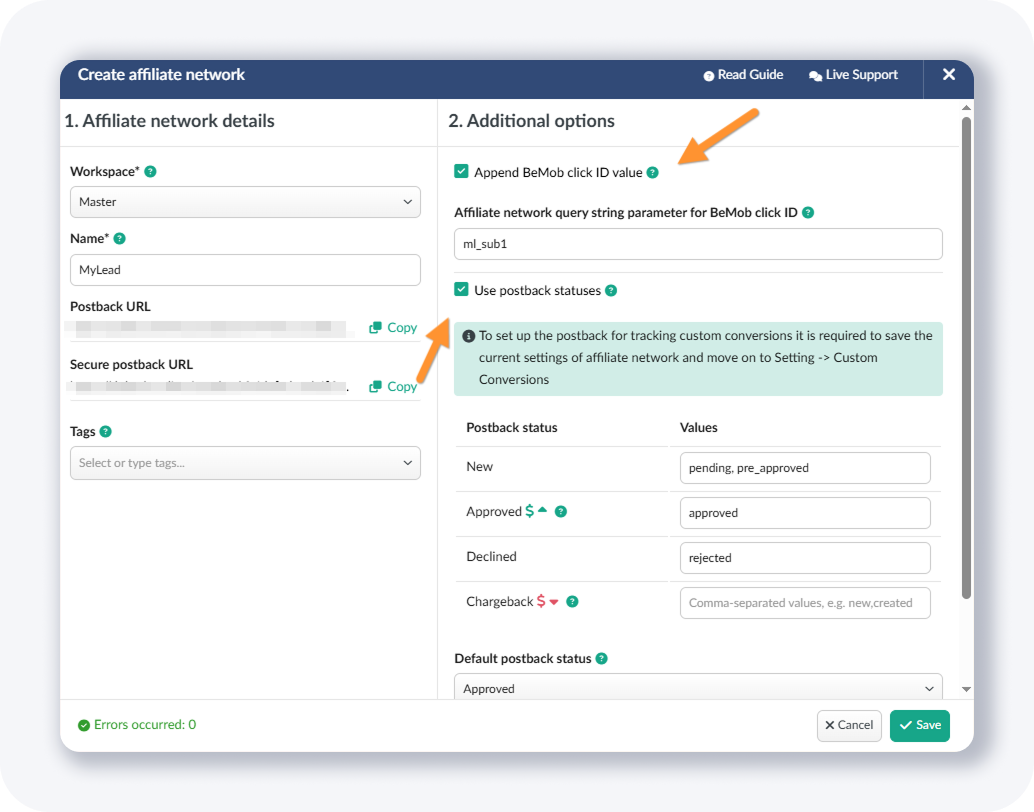
The good thing is BeMob will automatically append your MyLead URL-s with the correct Click ID token - so you don’t have to do it manually.
Also, as you can see, by default, the “Use postback statuses” is checked. In case you want to track all conversion statuses, you can leave this on, but most of the time I just turn this off so it doesn’t mess with my data.
This is how I usually use it:
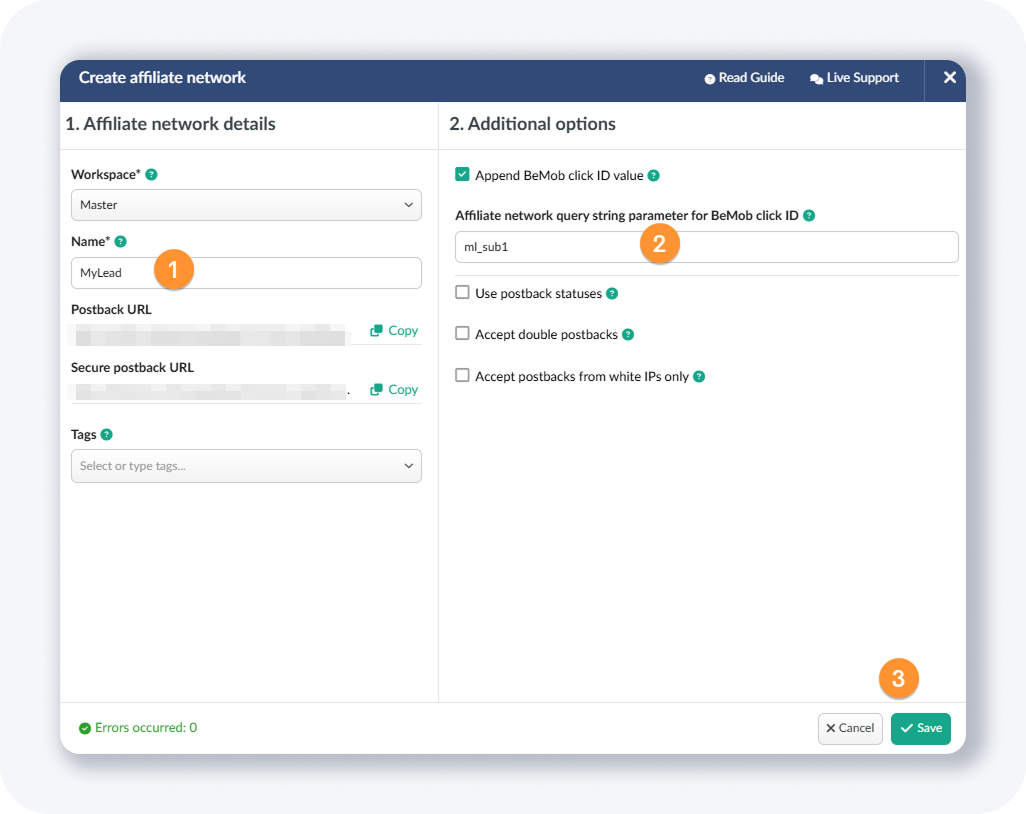
Once done, click on the Save button.
And that’s it - MyLead has been added to BeMob as an affiliate network!
Adding MyLead to Skro Tracker
Login to your Skro account, and open the Affiliate Networks page, and then click on the + Create button.
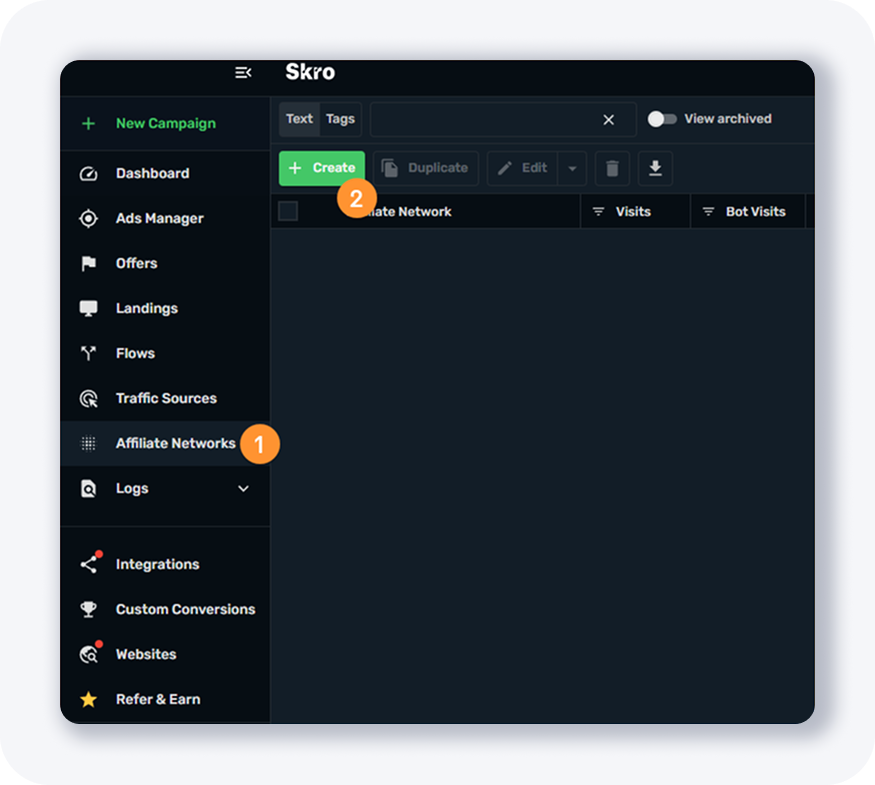
You’ll see a popup like this one:
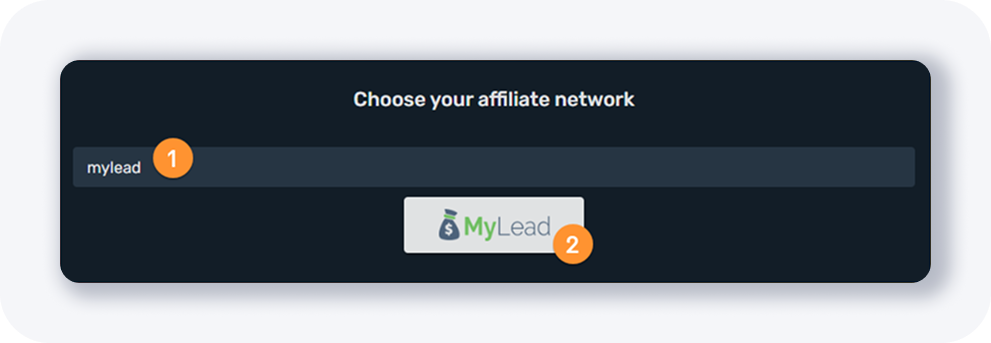
Search for “mylead” and click on the logo.
In the following step, select the workspace like I did:
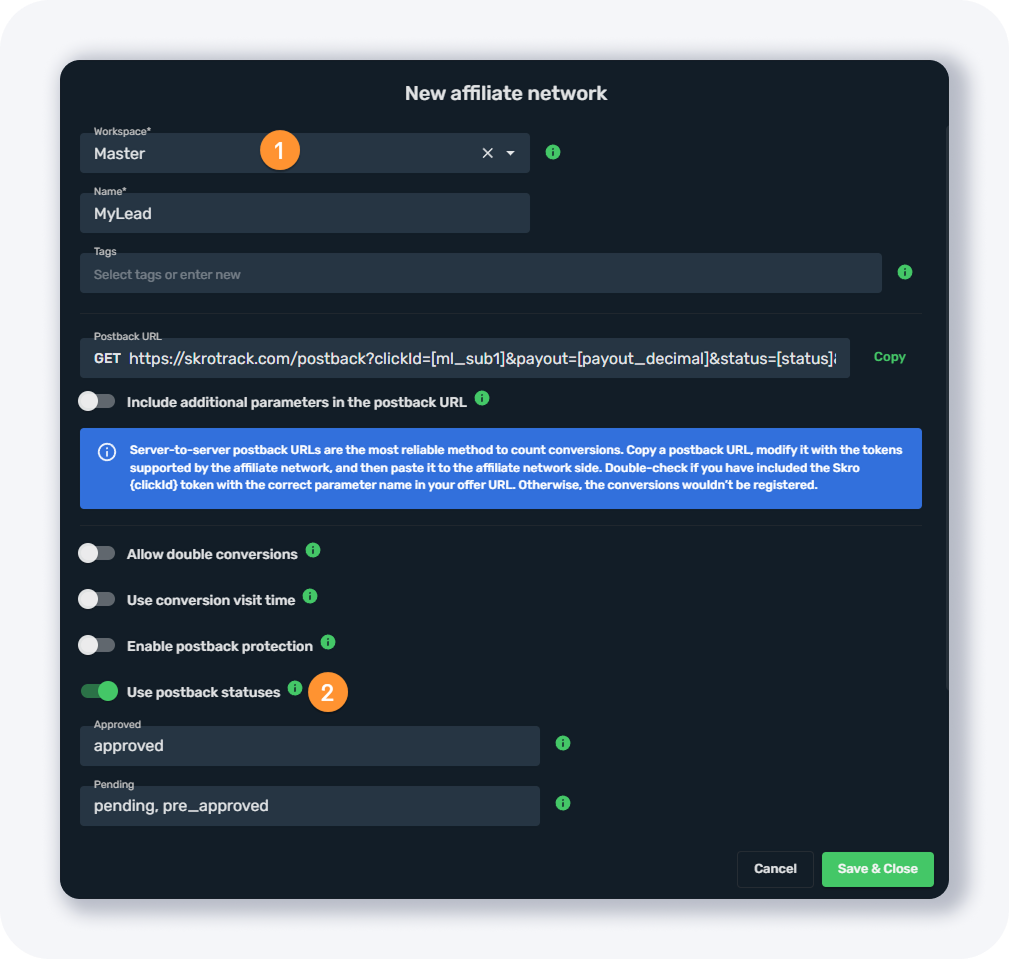
And if you wish, you can turn off “Use postback statuses” option if you don’t want to track pending conversions etc.
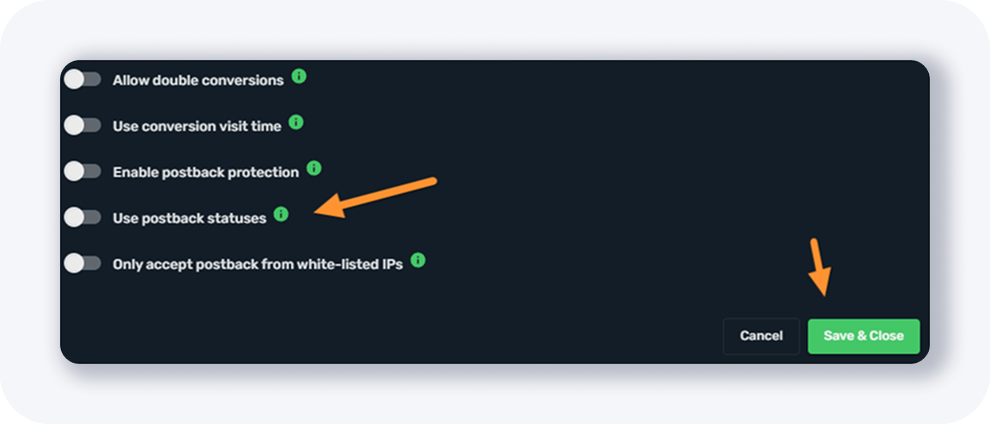
Once you are done, click on the Save & Close button.
Adding MyLead to MaxConv Tracker
And now let’s add MyLead to MaxConv tracker.
Select Affiliate Networks from the main menu, and click on the + Create button.
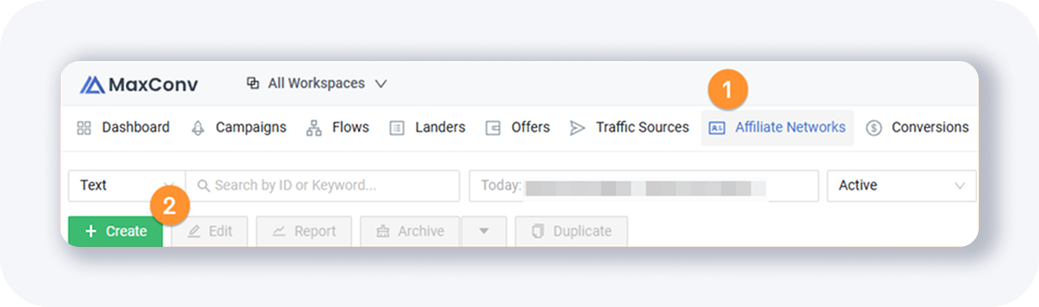
Search for “mylead” and click on the “MyLead” box.
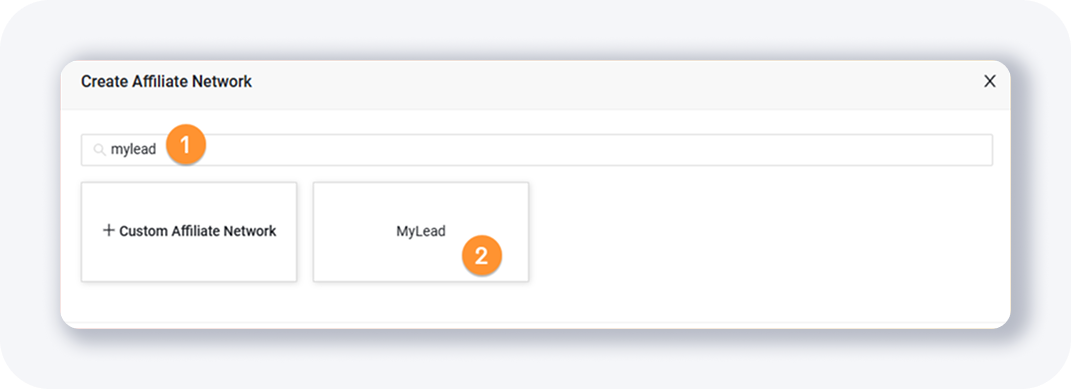
You’ll see a popup like this one:
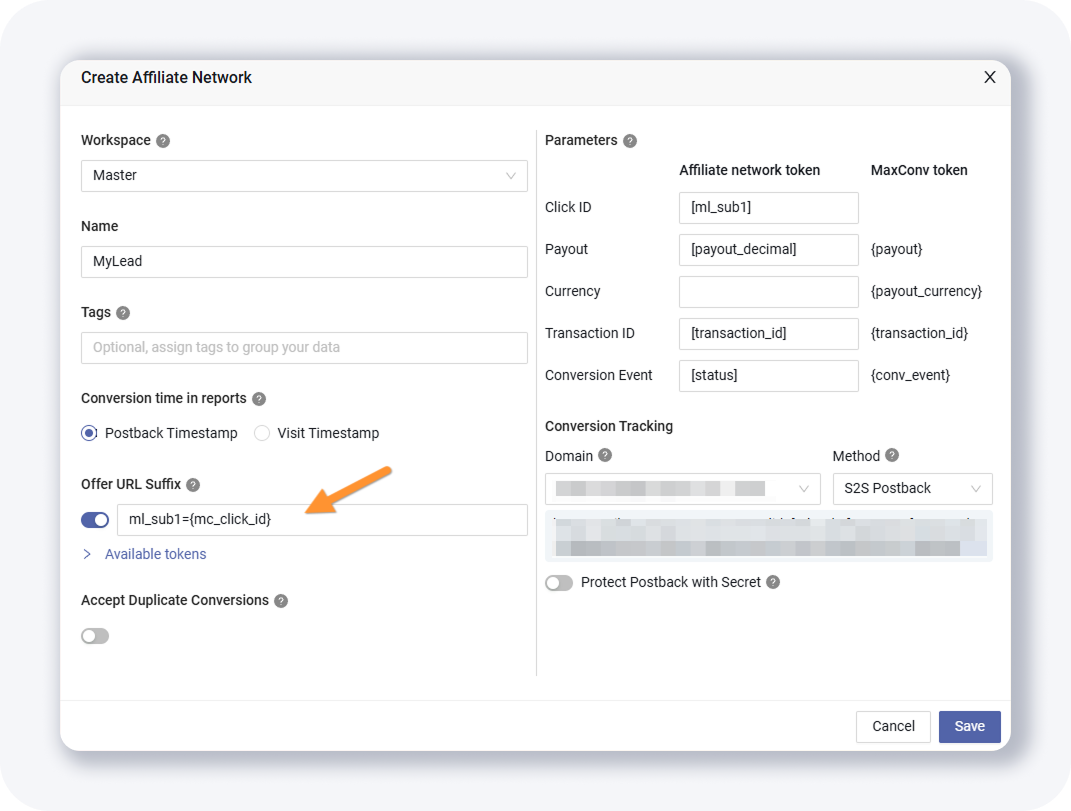
The good thing is that MaxConv will automatically append your MyLead offer URL-s with correct clickId tracking token, so you don’t have to!
Click Save and you are good to go!
TIP: When possible, make sure your tracker automatically adds correct clickId token to your offer URL.
Complete MyLead Guide - Chapter list
1. How to register on MyLead - click to read
2. Main Dashboard - click to read
3. My Profile - click to read
4. Offers (Affiliate Campaigns) - click to read
5. Surveys - click to read
6. OfferWall Rewards - click to read
7. Content Lockers - click to read
CPA Locker - click to read
Captcha Locker - click to read
File Locker - click to read
Mobile Rewards - click to read
Icent Campaigns - click to read
Offer API - click to read
8. Smartlniks - click to read
9. Free Affiliate Tools - click to read
Coupons and promotions - click to read
HideLink - click to read
Passage of Offers - click to read
Damaged Links - click to read
10. Withdrawals - click to read
11. Statistics and Reports - click to read
12. Postbacks - click to read
13. Adding MyLead as an Affiliate Network to your Tracker - now reading
14. How to Add MyLead Offers to the Tracker
15. How to Add MyLead Lockers (as an Offer) to Tracker
16. How to Add MyLead Smartlinks (as an Offer) to Tracker
17. Community and News
Have any questions? Feel free to reach us through our channels.