Blog / MyLead Guide
Complete MyLead Guide - How to Add a MyLead Smartlink to Your Tracker?
This article is updated regularly
Last update:
08 December 2025
Adding a MyLead smartlink as an offer to a tracker means registering the smartlink URL so the tracker forwards its clickId token to MyLead. This makes it possible to measure conversions and revenue from the smartlink exactly like any other tracked offer. The method works with BeMob, Skro and MaxConv through the ml_sub1 parameter.
In this guide you'll find the exact steps to copy a MyLead smartlink and add it as an offer in three popular trackers. Everything is focused on practice, not theory.
What you'll learn from this article:
how to find and copy a MyLead smartlink from the Smartlinks list,
how the ml_sub1 click ID parameter passes your tracker's clickId to MyLead,
how to add a smartlink as an offer in BeMob, Skro and MaxConv,
when the tracking token is added automatically and when you add it by hand.
How do you add a MyLead smartlink to a tracker as an offer?
A MyLead smartlink is added to a tracker by creating a new offer, choosing MyLead as the affiliate network, and pasting the smartlink URL. The tracker forwards its own clickId through the ml_sub1 parameter, so every conversion and payout from the smartlink is recorded in the tracker's reports, just like a standard offer.
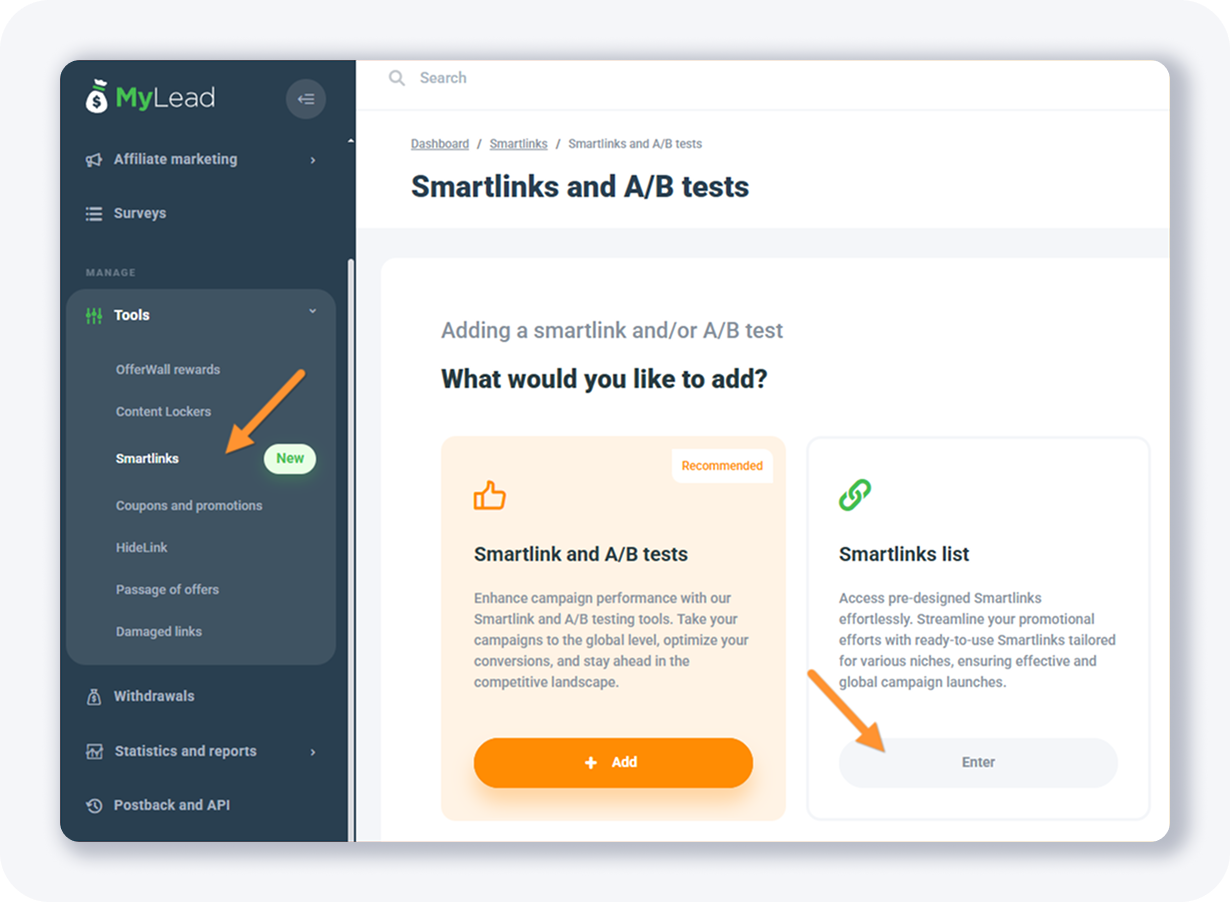
First, open the MyLead panel, go to Tools and open the Smartlinks list, then pick the configuration you want to promote (filter by All, Created by me, Predefined or From other providers).
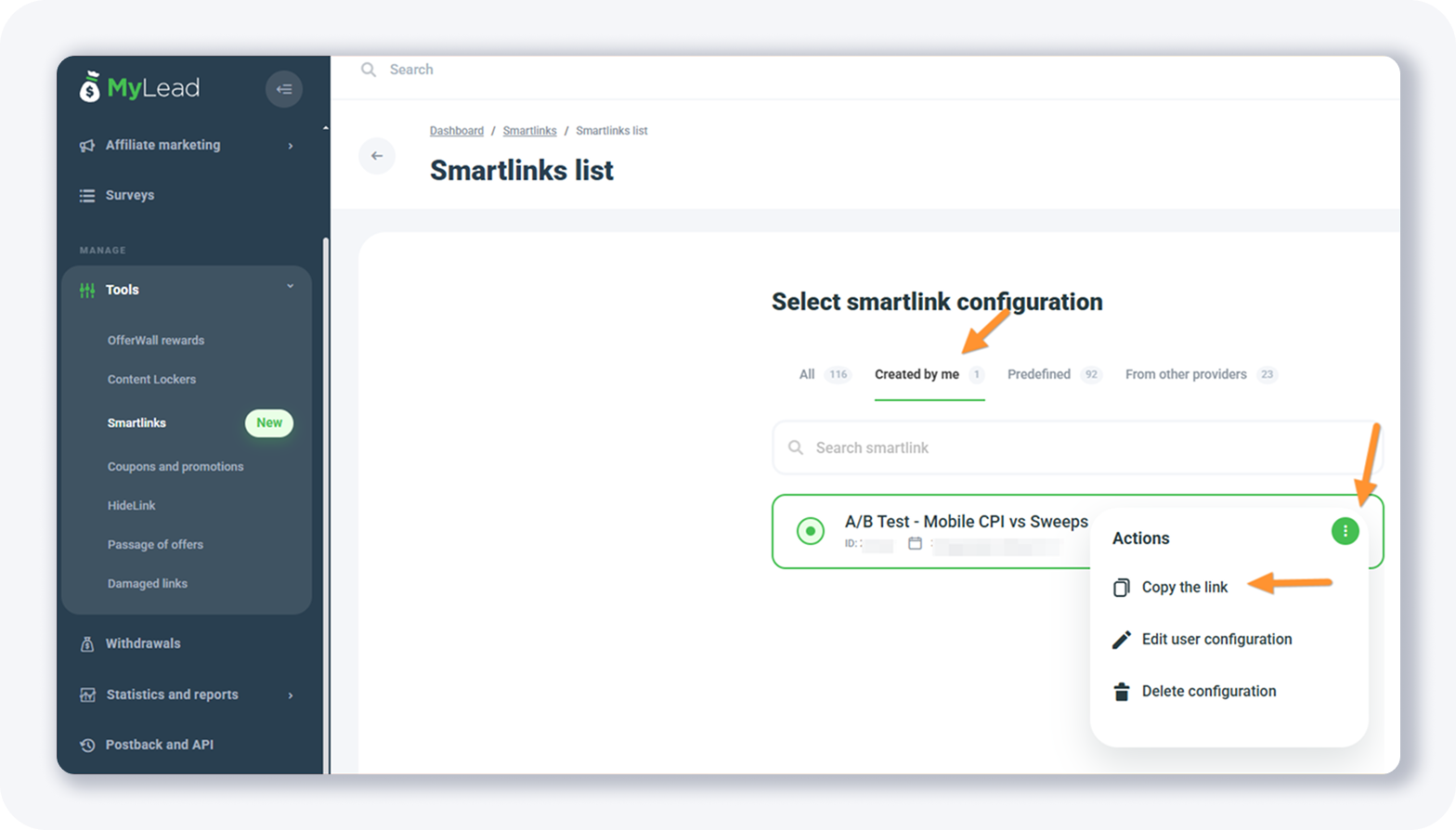
Open the second tab to see your smartlink, click the three-dot Actions button and choose Copy the link.
The same routine adds MyLead affiliate offers and Content Lockers as offers; a smartlink simply packs many offers behind one URL that rotates by geo and device.
How do you add a MyLead smartlink to the BeMob tracker?
In BeMob, a smartlink is added from the Offers section with the + New button. The offer form needs a name, a country (or Global), the affiliate network and the pasted smartlink URL. BeMob appends the ml_sub1 click ID parameter automatically, so the clickId token does not have to be added by hand.
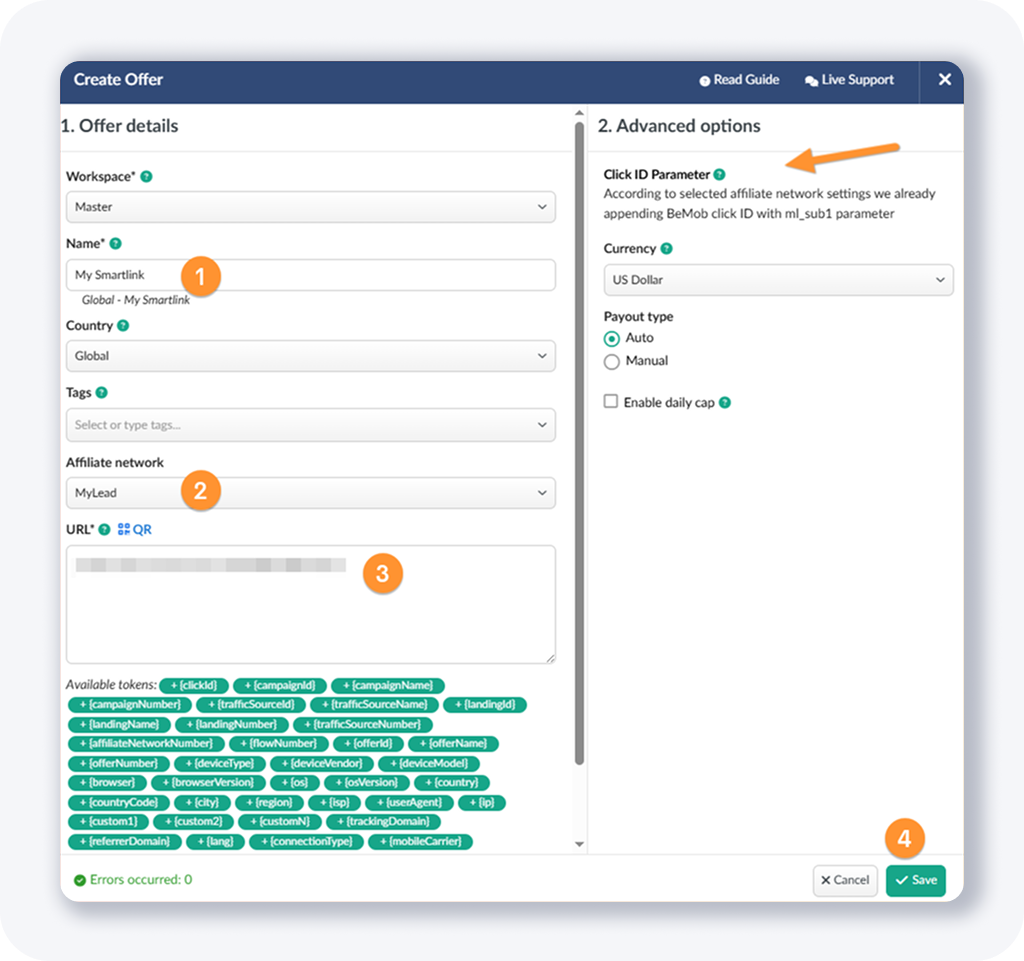
Open your BeMob tracker, select Offers and click + New. Set MyLead as the affiliate network; if it isn't listed yet, first add MyLead as an affiliate network, then paste the URL and click Save.
How do you add a MyLead smartlink to the Skro tracker?
In Skro, the smartlink is added from the Offers page with the + Create button. The form asks for the workspace, offer name, country, affiliate network and the smartlink URL. Skro does not append the token automatically, so the suffix ?ml_sub1={clickId} has to be added manually at the end of the URL before saving.
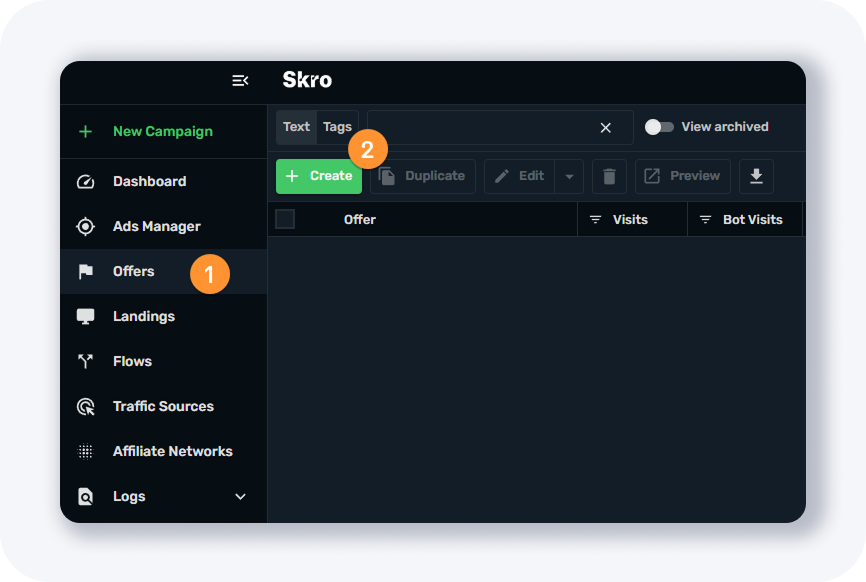
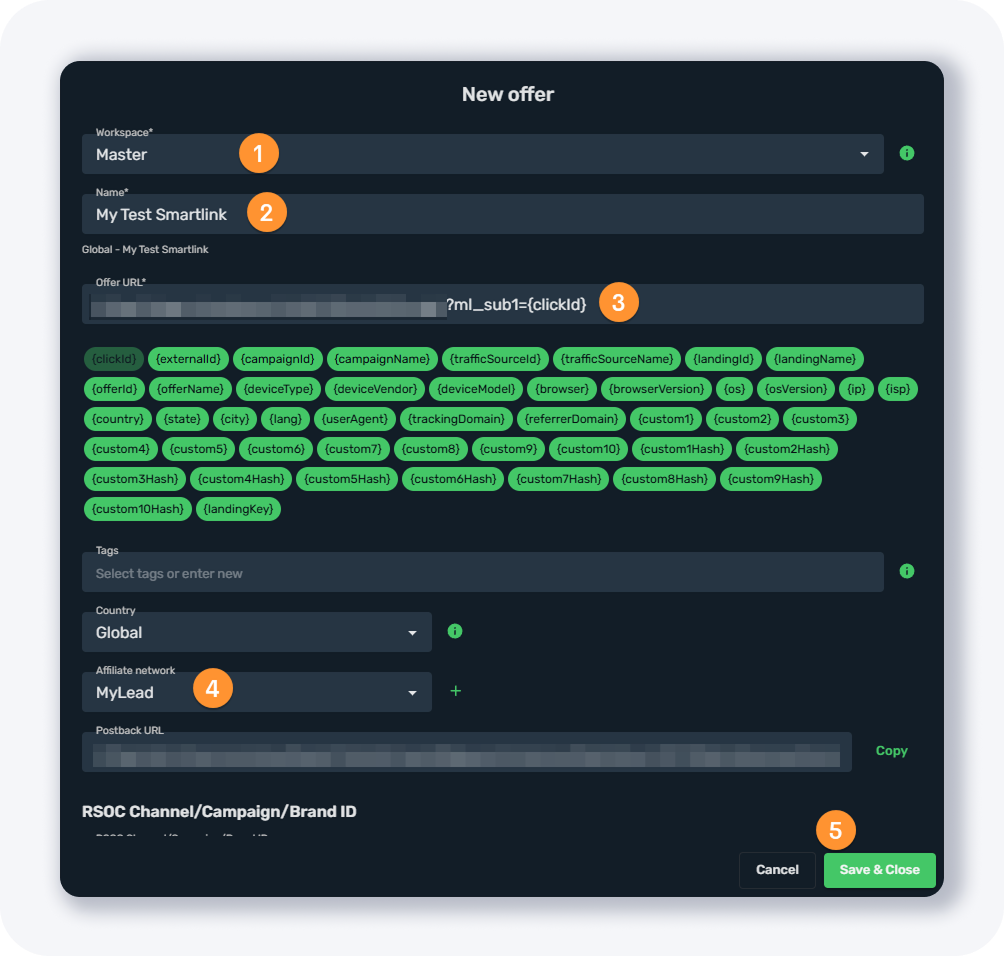
On the Offers page in Skro, click + Create, complete the form, then append ?ml_sub1={clickId} after the URL and click Save & Close. New to trackers? See how to set up a tracker and add MyLead Lockers the same way.
How do you add a MyLead smartlink to the MaxConv tracker?
In MaxConv, the smartlink is added from the Offers page with the + Create button. You select the workspace, enter the offer name, pick a country (or Global), choose the affiliate network and paste the smartlink URL. MaxConv appends ?ml_sub1={mc_click_id} automatically, so the clickId token is forwarded without any manual edit.
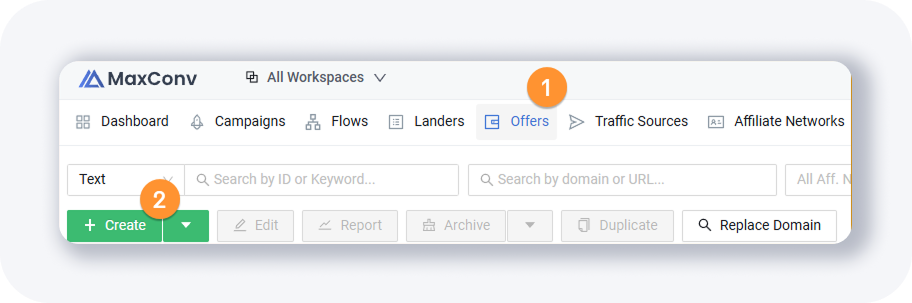
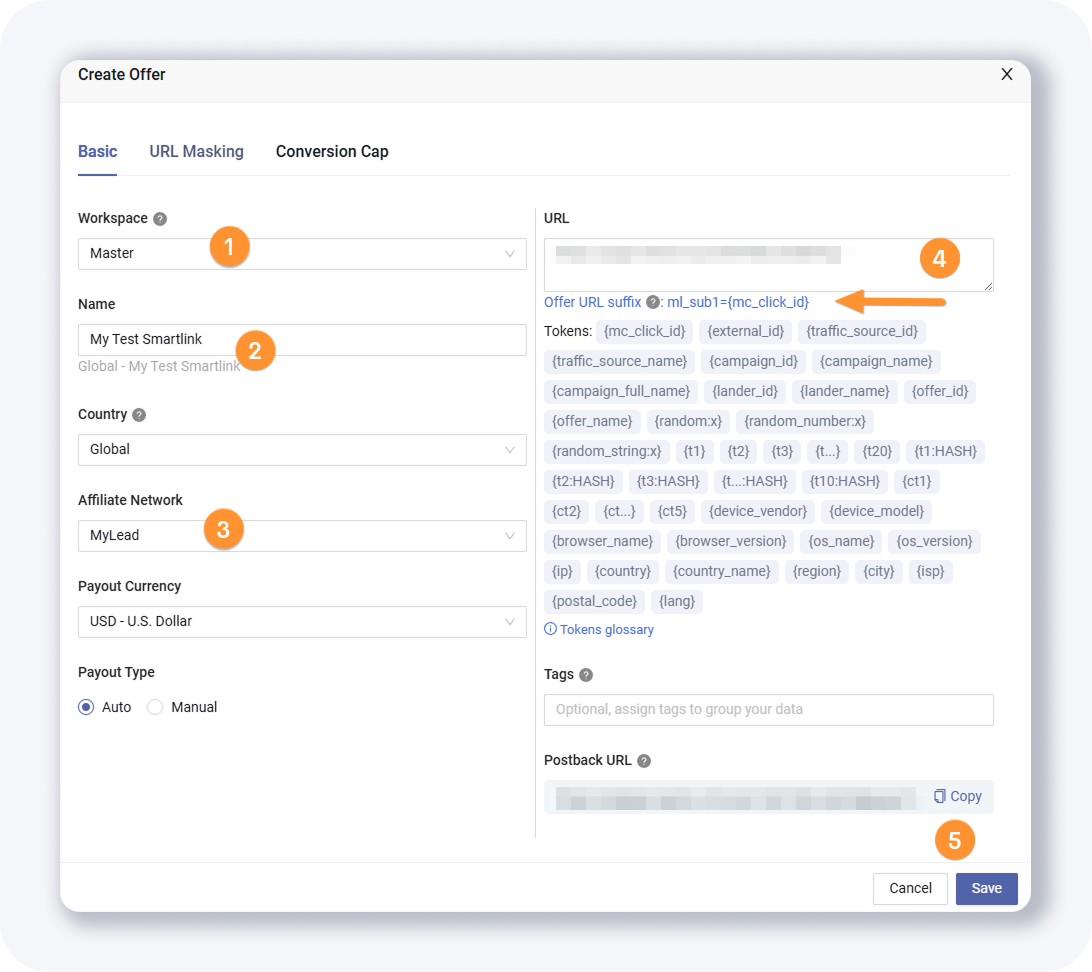
Open the Offers page in MaxConv, click + Create, fill in the form and click Save. Because the click ID parameter is appended for you, you only need a working postback for conversions to return to MaxConv.
Key takeaways
A MyLead smartlink is tracked like any other offer once you register its URL and forward the clickId.
The ml_sub1 parameter carries your tracker's clickId to MyLead so conversions match the right click.
BeMob and MaxConv append the token automatically, while Skro needs ?ml_sub1={clickId} added by hand.
The same workflow applies to MyLead offers and Content Lockers, not only smartlinks.
Without a working postback, conversions never reach your tracker, so configure it before promoting.
Complete MyLead Guide - Chapter list
1. How to register on MyLead - click to read
2. Main Dashboard - click to read
3. My Profile - click to read
4. Offers (Affiliate Campaigns) - click to read
5. Surveys - click to read
6. OfferWall Rewards - click to read
7. Content Lockers - click to read
CPA Locker - click to read
Captcha Locker - click to read
File Locker - click to read
Mobile Rewards - click to read
Icent Campaigns - click to read
Offer API - click to read
8. Smartlniks - click to read
9. Free Affiliate Tools - click to read
Coupons and promotions - click to read
HideLink - click to read
Passage of Offers - click to read
Damaged Links - click to read
10. Withdrawals - click to read
11. Statistics and Reports - click to read
12. Postbacks - click to read
13. Adding MyLead as an Affiliate Network to your Tracker - click to read
14. How to Add MyLead Offers to the Tracker - click to read
15. How to Add MyLead Lockers (as an Offer) to Tracker - click to read
16. How to Add MyLead Smartlinks (as an Offer) to Tracker - now reading
17. Community and News - click to read
FAQ
1. What is a MyLead smartlink?
A MyLead smartlink is one URL that rotates between many offers by geo and device. See more on what a smartlink is and how it routes traffic.
2. What does the ml_sub1 parameter do?
It carries your tracker's clickId into MyLead so each conversion matches its click. BeMob and MaxConv add it automatically, while Skro needs it added by hand.
3. Do you need a postback to track smartlink revenue?
Yes. The ml_sub1 token forwards the click and the postback sends the conversion back, so revenue appears in your statistics and reports.
4. Why does Skro require a manual tracking token?
Skro does not auto-append the click ID parameter, so you add ?ml_sub1={clickId} to the end of the smartlink URL yourself before saving.
Summary
Adding a MyLead smartlink to BeMob, Skro or MaxConv takes only a few minutes: copy the URL, create an offer, set MyLead as the network and confirm the ml_sub1 clickId token is in place. With the token and a postback configured, the smartlink reports conversions and revenue like any other offer. New to MyLead? Create a free publisher account and add your first smartlink today.
Have any questions? Feel free to reach us through our channels.